> ## Documentation Index
> Fetch the complete documentation index at: https://docs.openhome.com/llms.txt
> Use this file to discover all available pages before exploring further.
# Wake Word & Sleep Interaction
> Control when your Agent listens using the wake word, and put the Agent in and out of sleep mode with voice.
The **wake word** is the interaction word — or set of words — you use to address your Agent. Its purpose is to make sure the Agent only responds when you actually want it to — not to your everyday conversations with people around you, and not to speech meant for a different Agent in the same space. One or more wake words can be configured per Agent, and any one of them can be used to address it.
When the wake word is enabled, the Agent only responds to user turns that include one of the configured wake words. This is useful when:
* You have **multiple Agents** in the same room or household and want each one to respond only to its own wake words. This also prevents Agents from triggering each other — without a wake word, one Agent's spoken reply could be picked up by another Agent as user input, causing them to talk to one another in a loop.
* You want the Agent to **stay quiet during normal conversation** and only engage when explicitly addressed.
When the wake word is disabled, the Agent responds to every user turn — appropriate for focused, single-user sessions where there is no ambient conversation to filter out.
**Sleep mode** puts the Agent into a paused state where it stops responding to user turns. The Agent enters sleep mode in two ways:
* **Manually**, by speaking a sleep mode trigger phrase during the conversation (for example, `go to sleep mode` or `stop talking`).
* **Automatically**, when there is no conversation activity for the configured **sleep timeout** duration.
To resume the conversation, you must speak one of the configured wake words — this brings the Agent out of sleep mode, after which you can continue interacting with it normally. A wake word is required to exit sleep mode regardless of whether the wake word is enabled for normal conversation.
### A note on STT and short utterances
Speech-to-text (STT) often delays finalizing a transcription when the user says a single short word, since it waits for more audio to confirm the utterance is complete. This can make the wake word feel slow to respond when spoken on its own.
For example, if one of the configured wake words is `openhome`:
| User says | STT behavior |
| -------------------------------- | ------------------------------------------------------------------------- |
| `openhome` | STT waits for additional audio before finalizing, which delays detection. |
| `hey openhome, can you hear me?` | STT finalizes quickly and the wake word is detected without delay. |
This applies in both modes:
* **Normal interactive mode**: when the wake word is enabled, speak one of the configured wake words as part of a short sentence rather than alone. Say `openhome, what's the weather?` instead of pausing after `openhome`.
* **Sleep mode**: to wake the Agent, follow a configured wake word with a short phrase, for example `openhome, are you there?`, rather than saying it in isolation.
## Enable, Disable, and Change the Wake Word
The wake word can be configured from either the Dashboard or the OpenHome DevKit App. Changes apply to the Agent linked to your DevKit.
### From the Dashboard
1. Open the [Dashboard](https://app.openhome.com/dashboard/home).
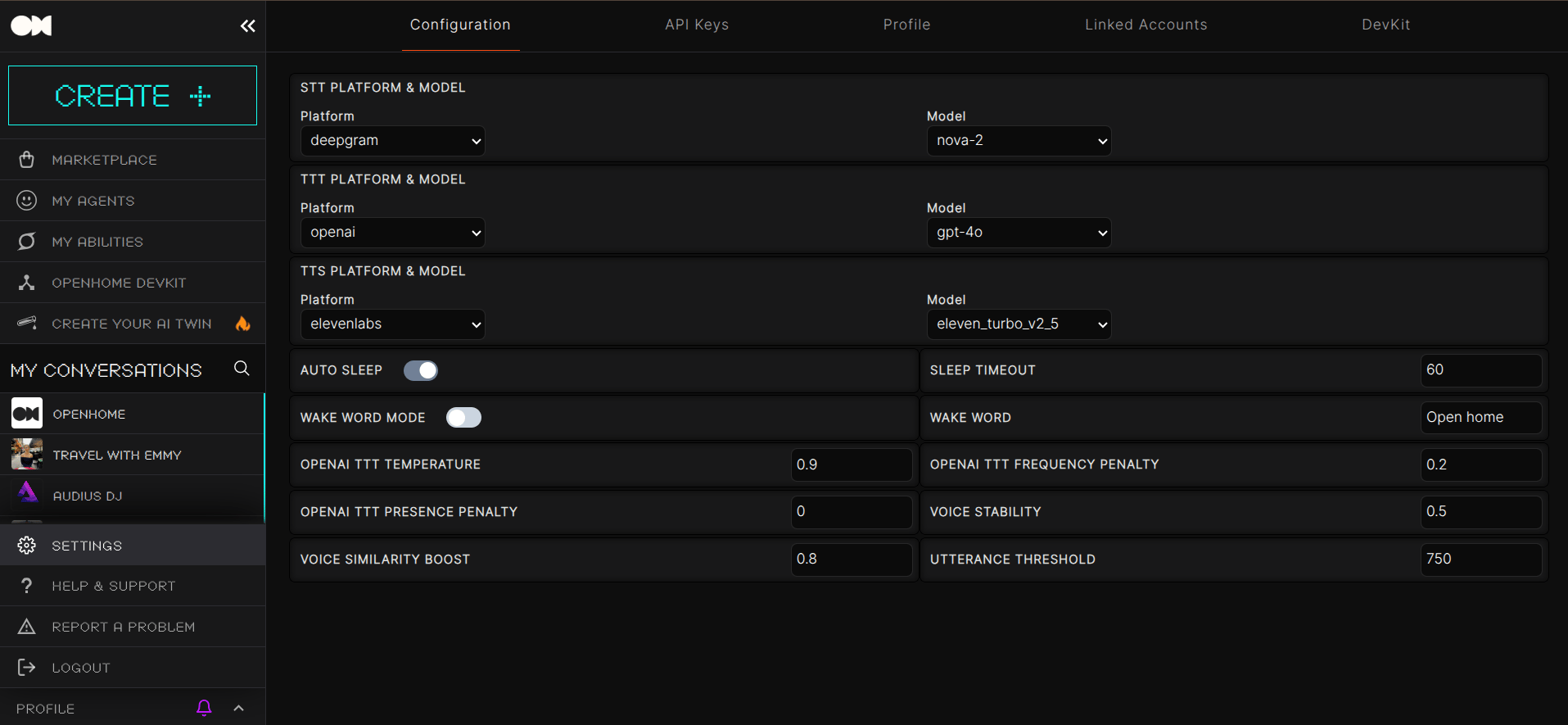
2. Go to **Settings → Configuration**.
3. Toggle the wake word on or off.
4. When enabled, enter the word or phrase you want to use as the wake word. Multiple wake words can be set by separating them with commas — for example, `hello, open home` configures both `hello` and `open home` as valid wake words, and either one can be used to address the Agent.
5. Save your changes.
### From the DevKit App
1. Open the **OpenHome - Voice AI Devkit App**.
2. Go to **Profile → Configuration**.
3. Toggle the wake word on or off.
4. When enabled, enter the word or phrase you want to use as the wake word. Multiple wake words can be set by separating them with commas — for example, `hello, open home` configures both `hello` and `open home` as valid wake words, and either one can be used to address the Agent.
5. Save your changes.


Changes sync to the DevKit once it is online and connected. After changing the wake word or toggling it on or off, the Agent on the DevKit must be restarted for the new configuration to take effect. Restart the Agent from the Dashboard or the DevKit App.
## FAQ
Yes. Open **Settings → Configuration** in the Dashboard or **Profile → Configuration** in the DevKit App and toggle the wake word off. The Agent will then respond to every user turn during normal conversation. Sleep mode still requires one of the configured wake words to wake the Agent.
Yes. With the wake word enabled, enter your preferred word or phrase in **Settings → Configuration** (Dashboard) or **Profile → Configuration** (DevKit App). You can enter a single wake word or multiple comma-separated wake words. Choose words that are distinct from common conversational filler to reduce false triggers.
Yes. Enter multiple wake words separated by commas in the wake word field — for example, `hello, open home`. Each comma-separated value is treated as a distinct wake word, and any one of them can be used to address the Agent.
Check the following:
* The wake word is enabled and saved in **Settings → Configuration** (Dashboard) or **Profile → Configuration** (DevKit App).
* The DevKit is online and has synced the latest configuration.
* The wake word you spoke matches one of the configured wake words, is pronounced clearly, and is not masked by background noise.
* None of the configured wake words are too short or too similar to ambient speech, which can hurt detection accuracy.
* After changing the wake word or toggling it on or off, the Agent on the DevKit must be restarted for the new configuration to take effect. Restart the Agent from the Dashboard or the DevKit App.
## How the Interaction Flow Works
The wake word can be enabled or disabled. The behavior of the Agent during normal conversation depends on this setting. Sleep mode behavior is independent of this setting.
### Wake Word Enabled
When the wake word is enabled, the Agent only responds to user turns that contain one of the configured wake words. A wake word can appear anywhere in the utterance — it does not need to be the first word. If multiple wake words are configured, any one of them is sufficient.
For example, if the configured wake word is `please`:
| User says | Agent response |
| ---------------------------------- | ------------------------------- |
| `hey openhome how are you` | Ignored — no wake word present. |
| `please openhome how are you` | Responds — wake word detected. |
| `openhome please tell me the time` | Responds — wake word detected. |
This mode is useful in shared spaces, multi-device setups, or any environment where background speech should not trigger the Agent.
### Wake Word Disabled
When the wake word is disabled, the Agent responds to every user turn during normal conversation. No wake word is required.
This mode is useful for focused, single-user sessions where uninterrupted back-and-forth is preferred.
### Sleep Mode
Sleep mode pauses the Agent until it hears one of the configured wake words, regardless of whether the wake word is enabled for normal conversation.
1. The user triggers sleep with a Sleep Mode trigger phrase (for example, `go to sleep mode` or `stop talking`).
2. The Agent enters sleep mode and stops responding to user turns.
3. The user says one of the configured wake words. The Agent exits sleep mode and resumes normal conversation.
To wake the Agent from sleep mode, you must speak one of the configured wake words. This is the only way to bring the Agent out of sleep mode, and it applies even if you have disabled the wake word for normal conversation — sleep mode always requires a wake word to resume.
## Default Sleep Mode Trigger Words
The following are the default trigger phrases used to put the Agent into sleep mode. Speaking any of them ends the active conversation and puts the Agent into sleep mode until it hears one of the configured wake words.
| Action | Default triggers |
| ----------------------------- | ---------------------------------- |
| **Put Agent into sleep mode** | `go to sleep mode`, `stop talking` |
These trigger phrases can be changed by editing the **Sleep Mode** Ability in the Dashboard.