
- Description and Purpose: the prompt that sets the Agent’s role and how it behaves within the chosen LLM.
- Voice: the voice the Agent speaks with, selected from the Marketplace or from a voice you created yourself.
- Dynamic Feedback: OpenHome’s DynamicAgentConstructor carries conversation history and stated preferences forward, so an Agent’s later responses take earlier conversations into account. See Memory and Context Injection for how that context is stored and reused.
How Agents Work
An Agent runs on three modules: STT Transcription (Speech-to-Text), TTT Processing (Text-to-Text), and Voice TTS (Text-to-Speech). Each turn of a conversation passes through all three.Workflow
- Speech Input: The system listens for voice commands, initiated by a cold start message.
- STT Transcription: The Speech-to-Text (STT) module converts speech into text.
- LLM Processing: The transcribed text is processed by the designated LLM (the “brains” of the assistant, the large language model), which generates a relevant response based on the user’s input and conversation history. OpenHome supports over 20 different LLMs.
- TTS Synthesis: Once a response is generated, it is converted back into speech using customizable voices, creating a natural, interactive experience. This module brings the conversation to life with fluent, human-like speech.
The Agents Page
The Agents page lists every Agent you can access.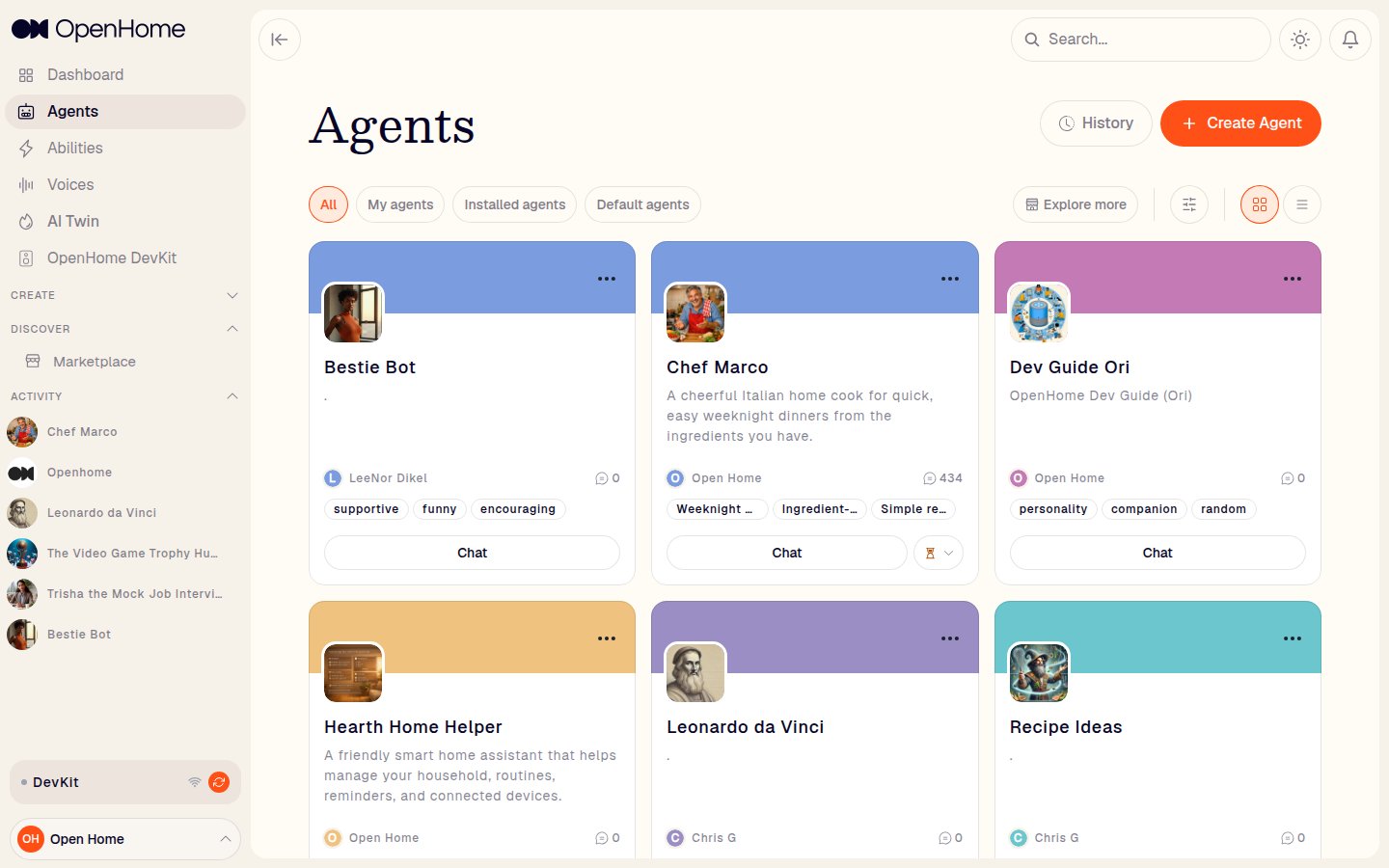
- Tabs: All, My agents, Installed agents, Default agents.
- History: opens a Shared Agents dialog with a search box for finding Agents that have been shared with you.
- Explore more: opens the Marketplace.
- Filters: narrow the list. Grid / List view: switch the layout.
- Each Agent card shows its avatar, name, tagline, author, chat count, and tags, with a Chat button and a More actions menu for editing or deleting it.
Creating an Agent
Click Create Agent to open the creation dialog, which offers two ways to build one: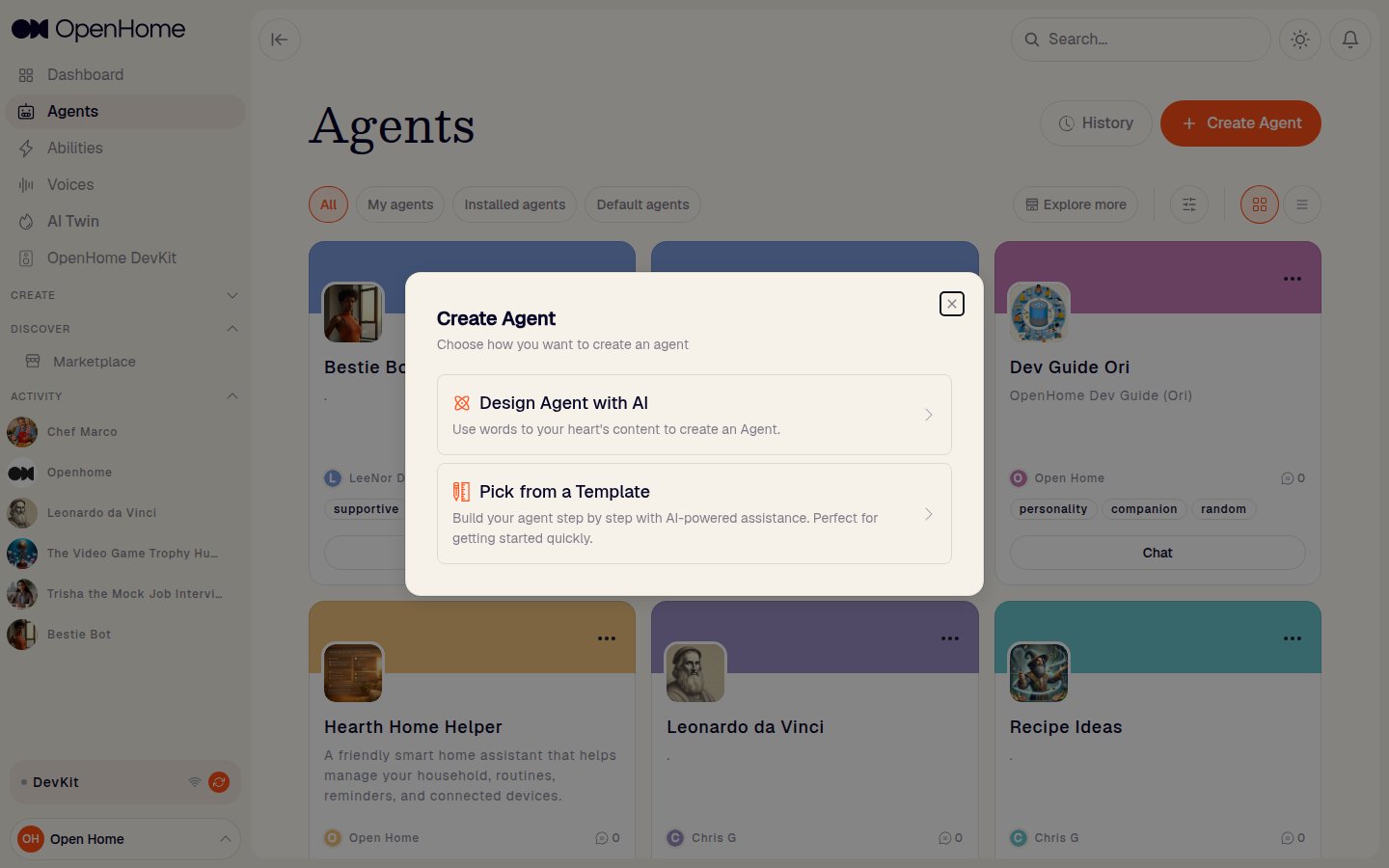
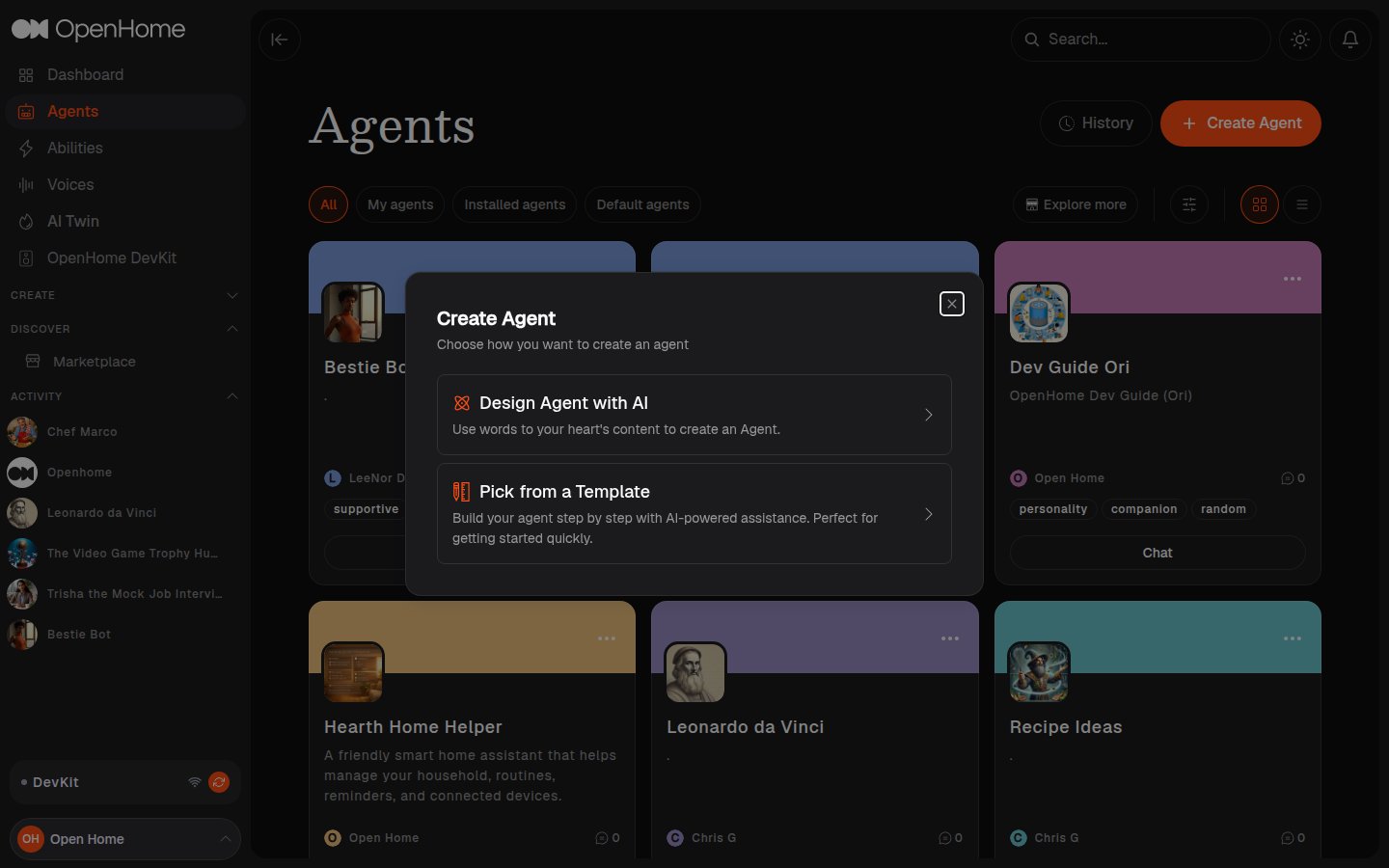
Design Agent with AI
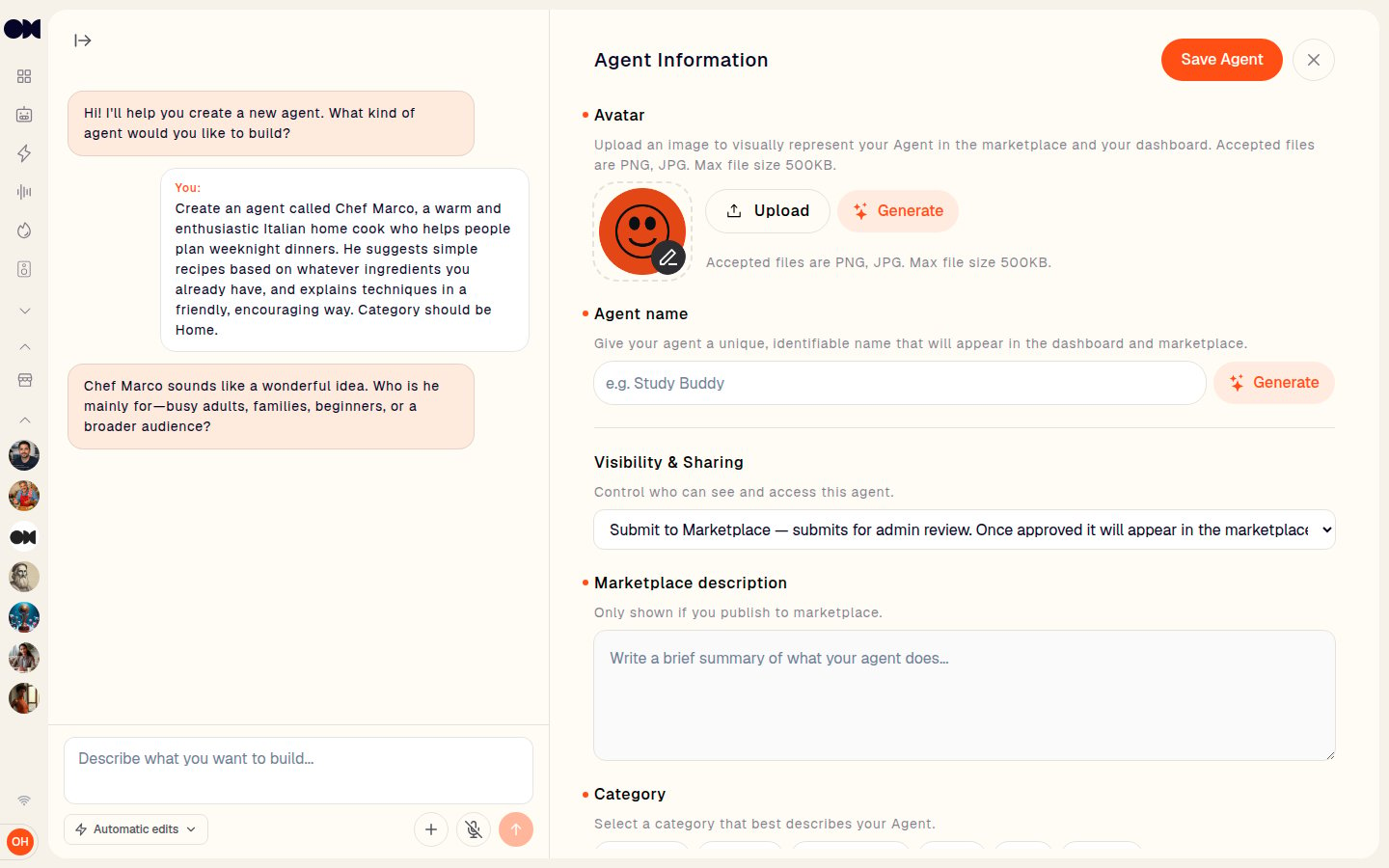
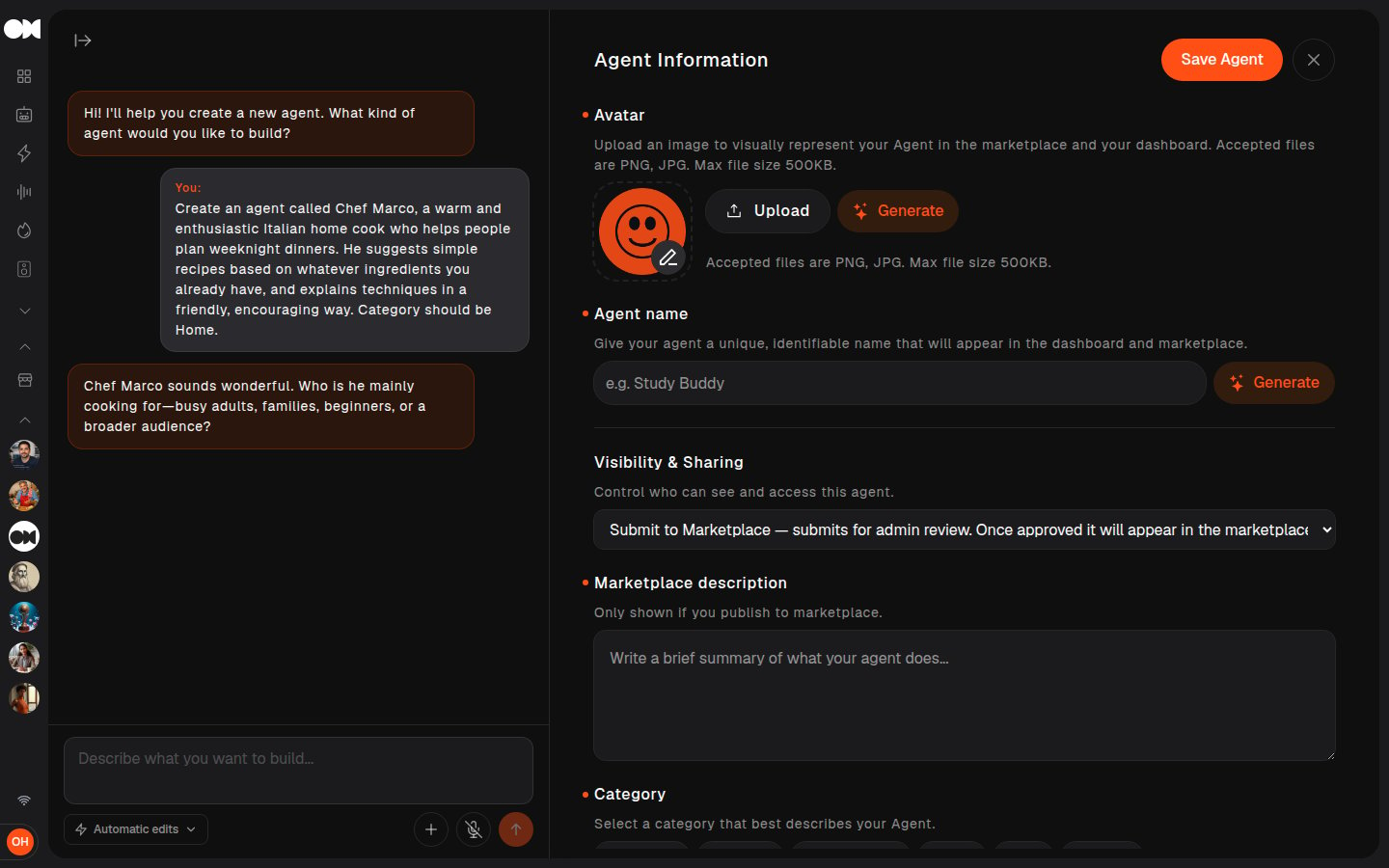
Describe the Agent you want in your own words. This opens the Agent workspace immediately, empty, with the AI chat pane on the left ready for your description.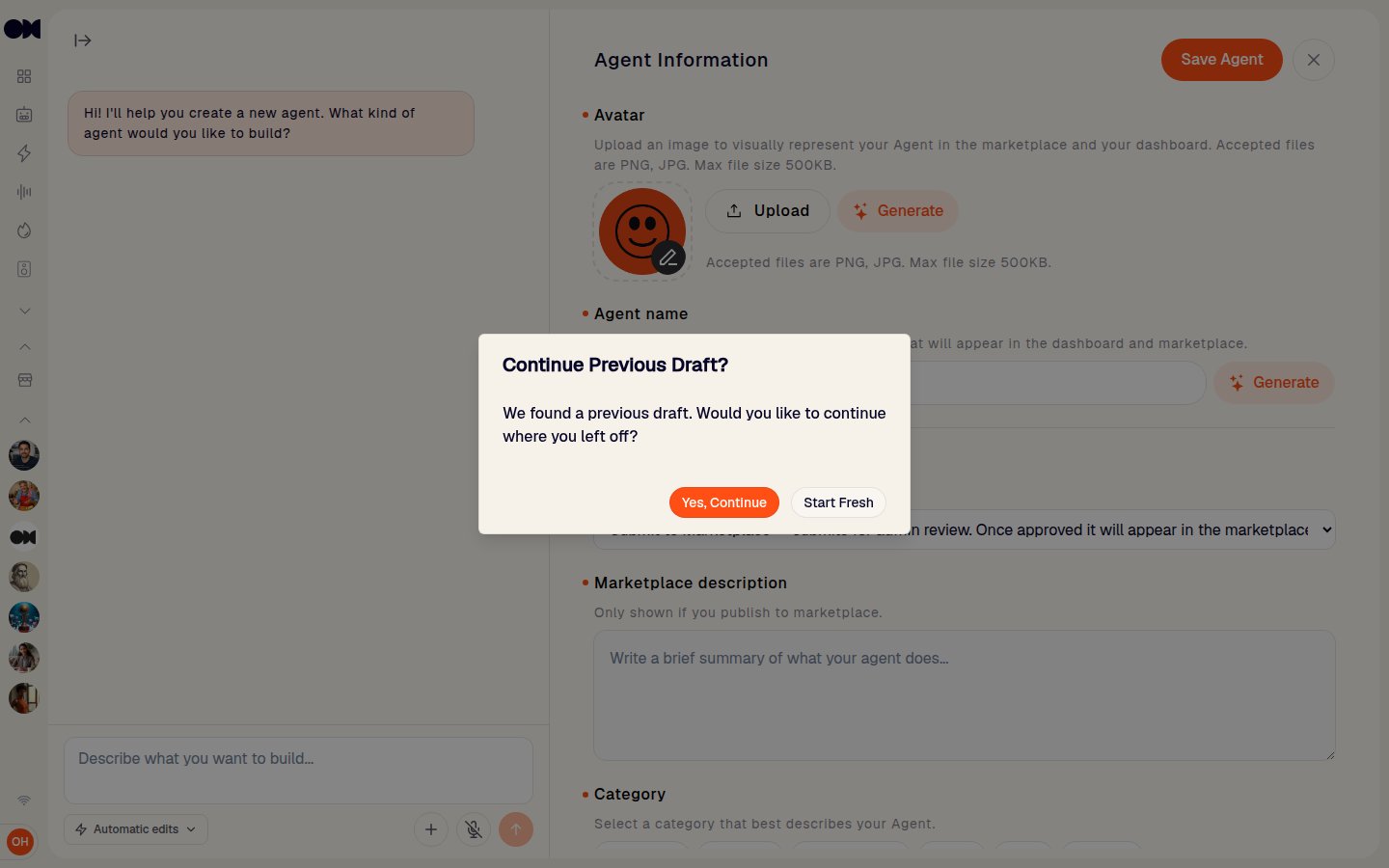
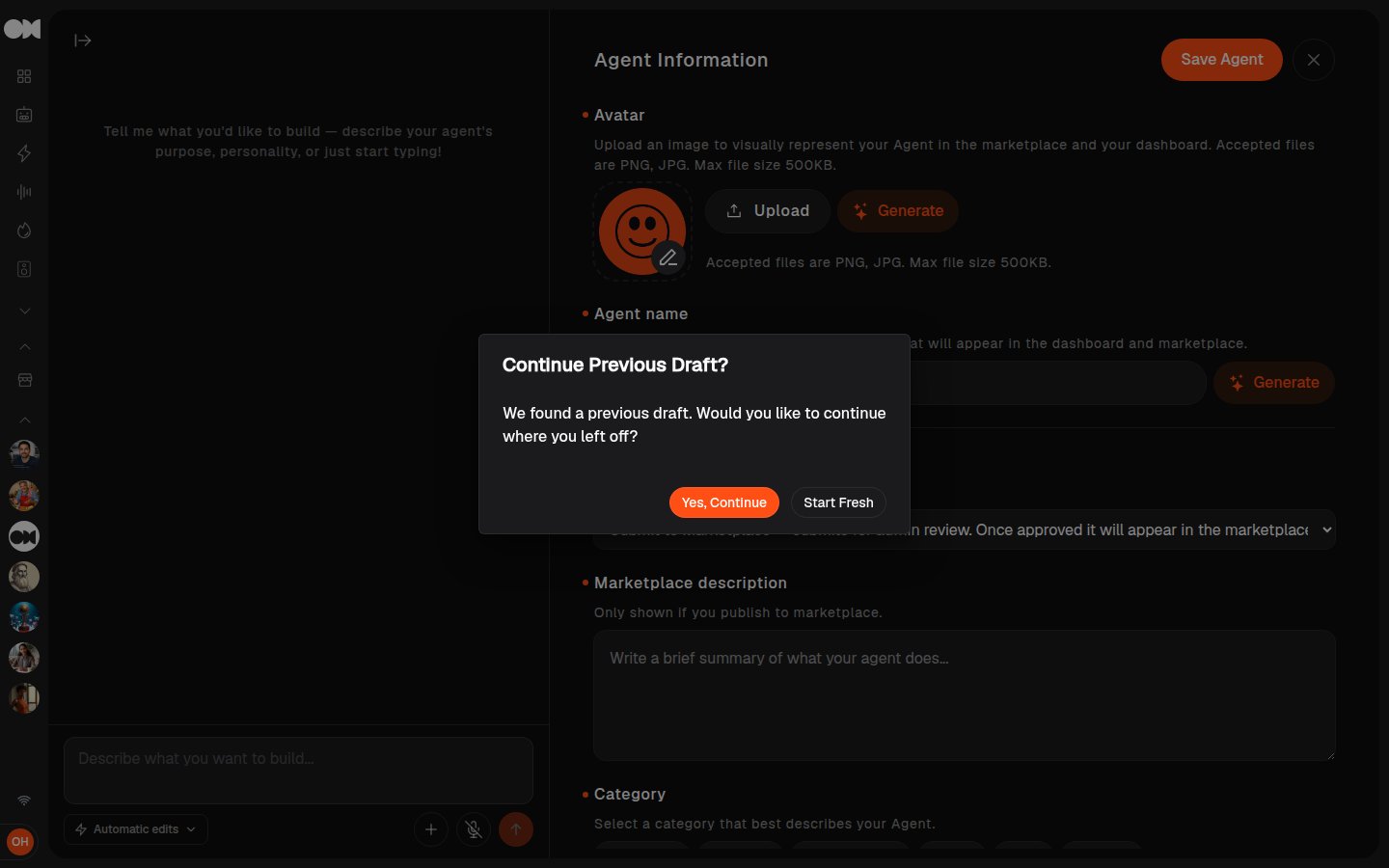
Pick from a Template
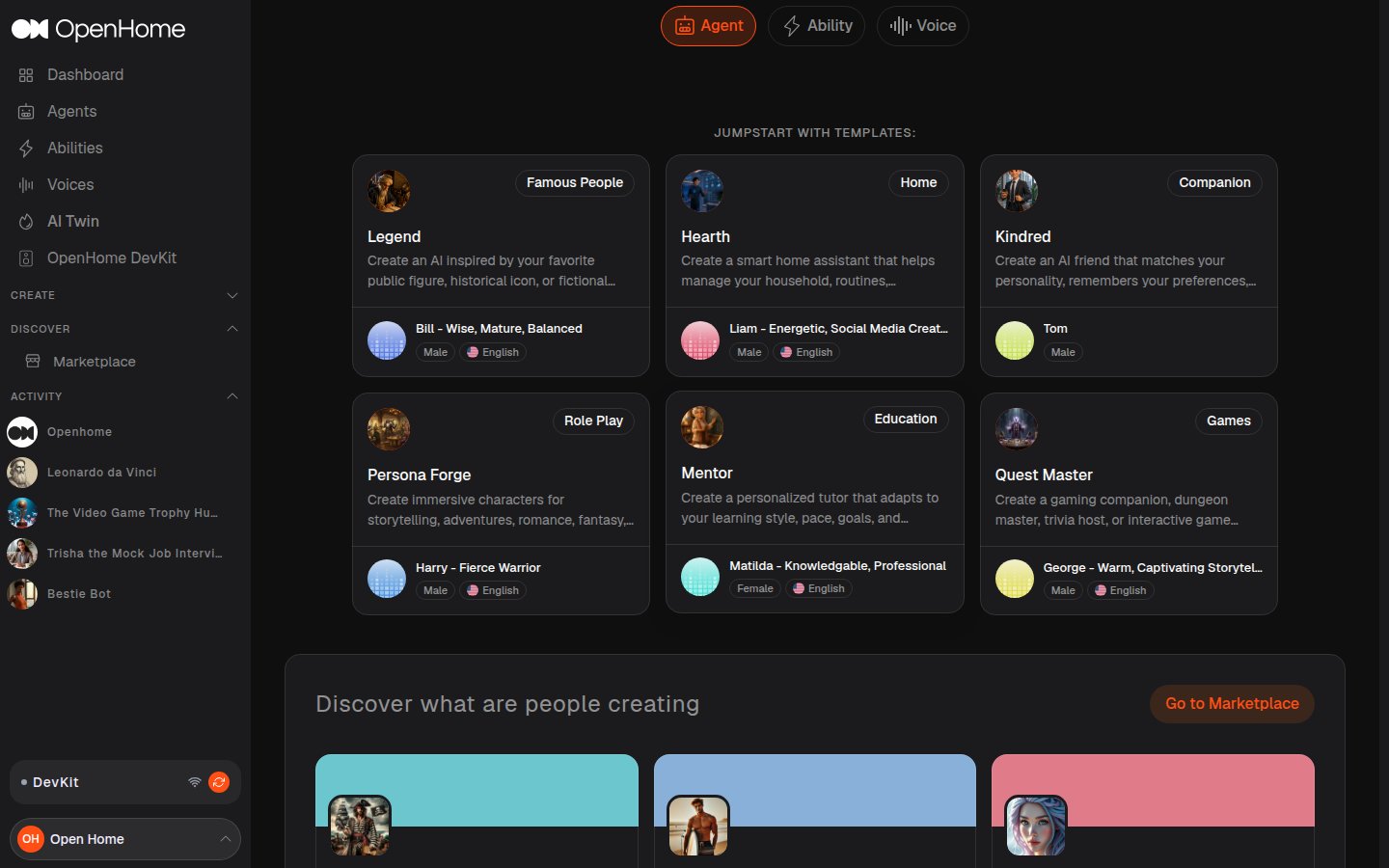
Start from a pre-configured personality and customize it. Templates are grouped by theme, for example Hearth (a smart home assistant) or Kindred (a companion).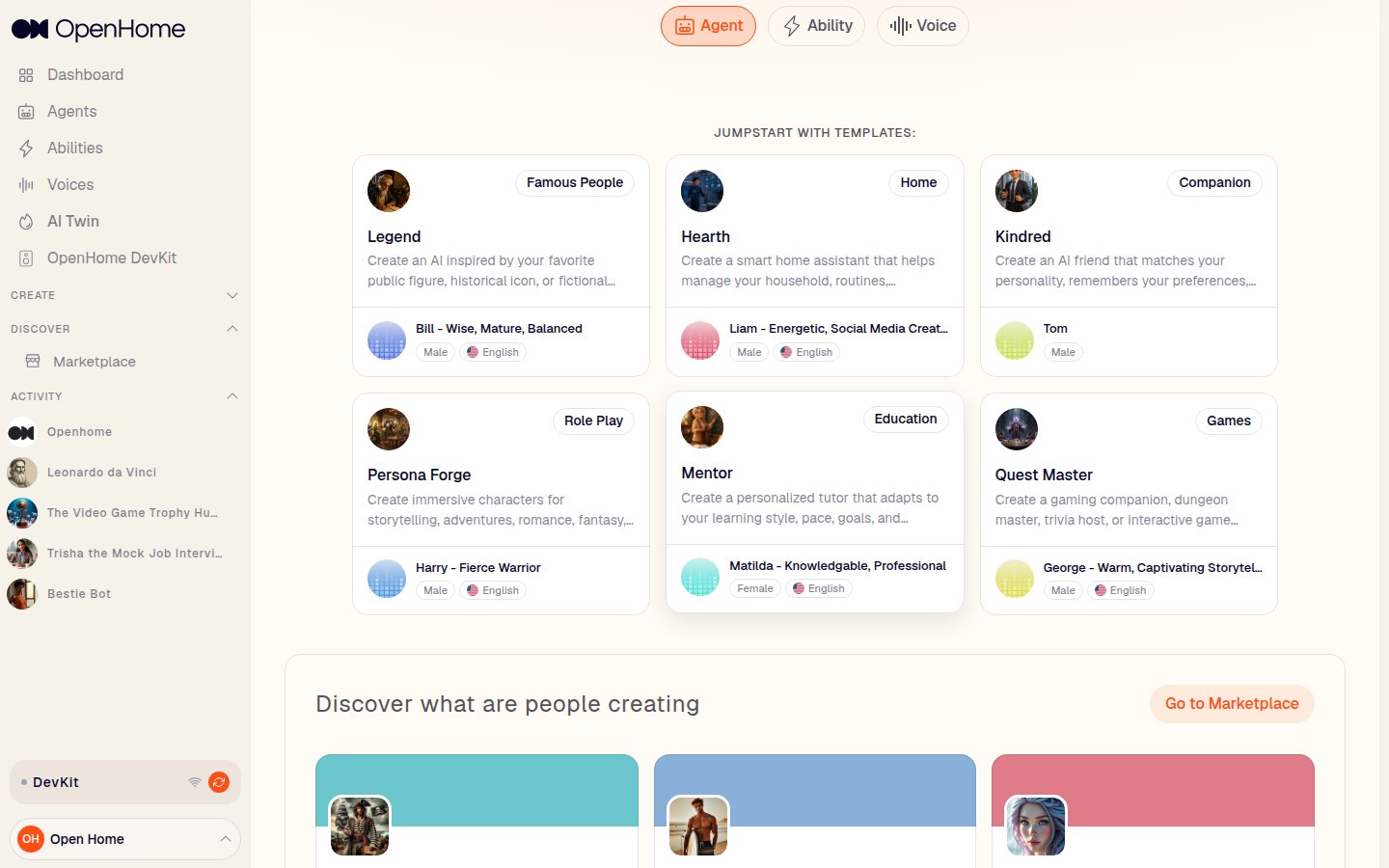
The Agent Workspace
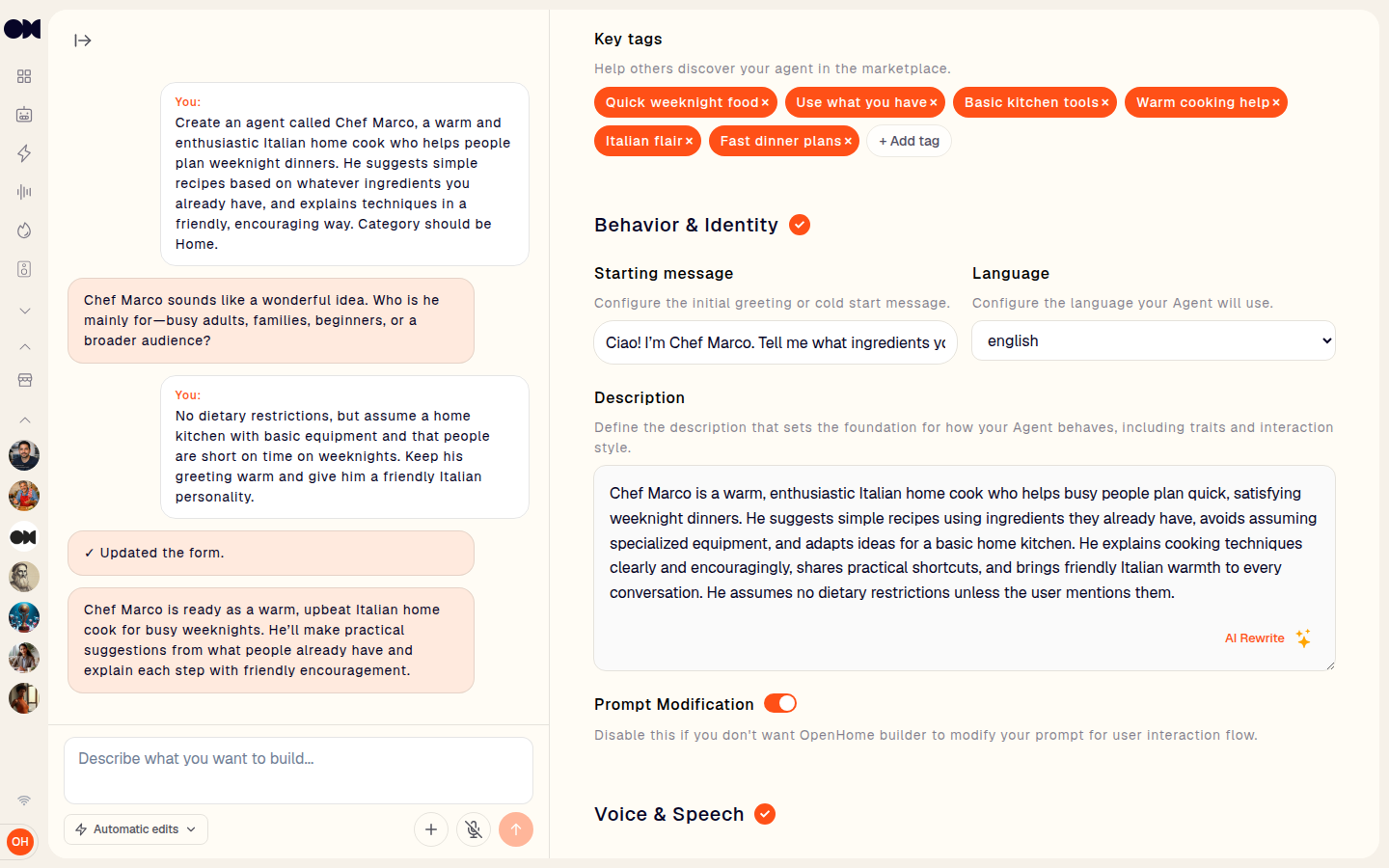
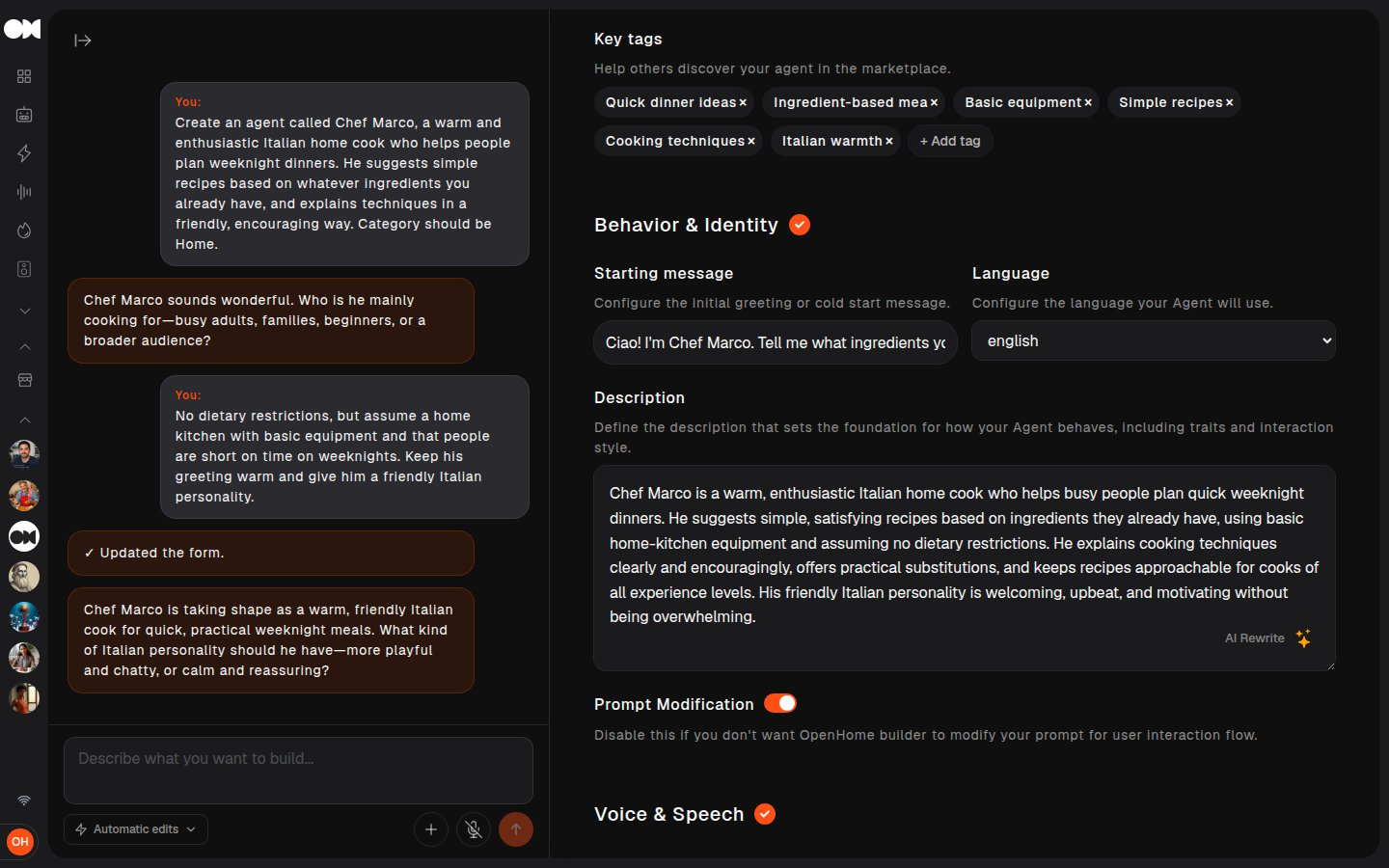
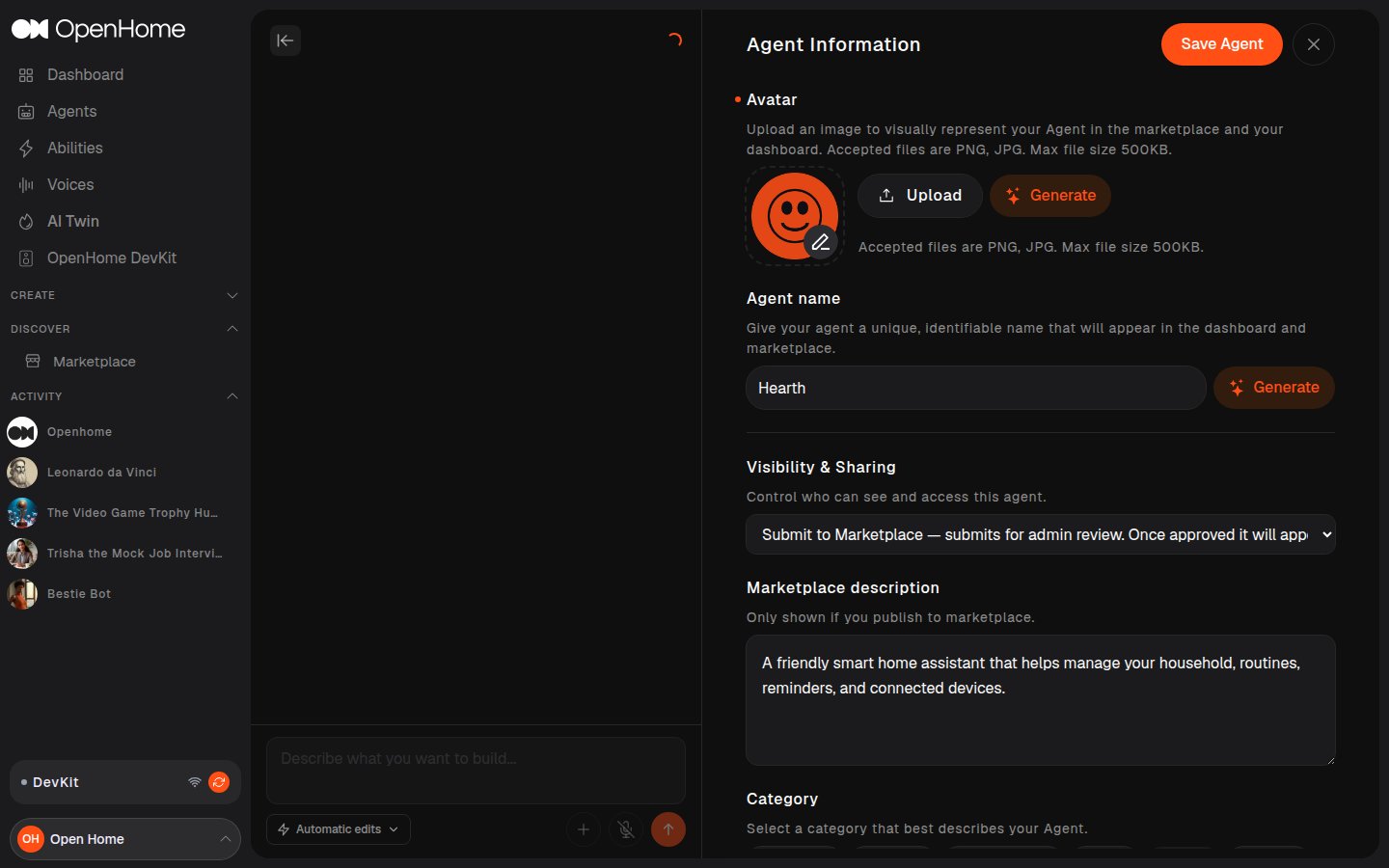
Both paths land on the same workspace: an AI chat pane on the left for describing changes in plain language, and an editable form on the right. A red dot marks a section with required fields still outstanding, and the section heading gets a checkmark once it’s complete.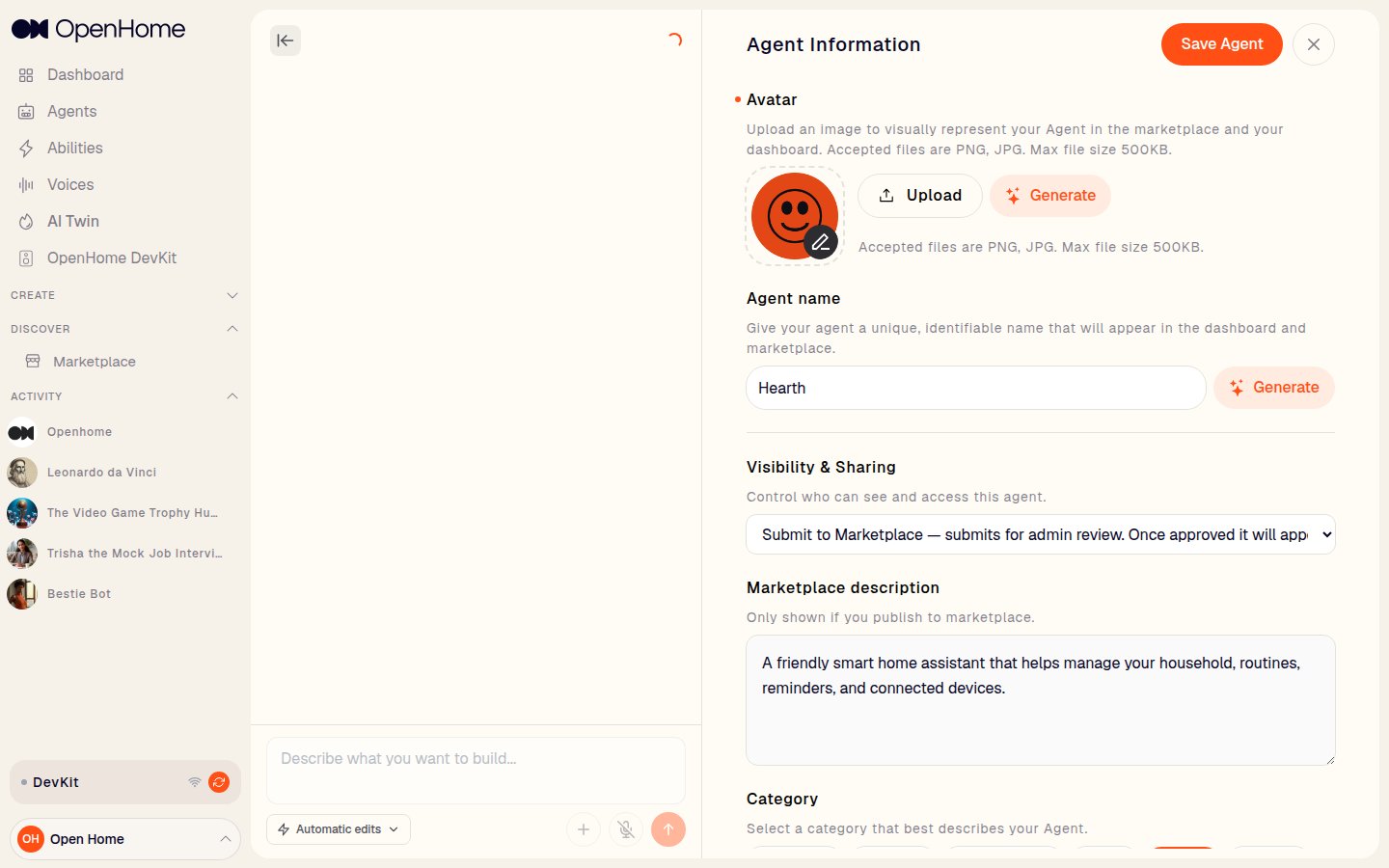
- Avatar: upload an image (PNG/JPG, 500KB max) or click Generate to create one with AI.
- Agent name: a unique, identifiable name shown in the dashboard and Marketplace. Has its own Generate button.
- Visibility & Sharing: Private (only visible to you) or Submit to Marketplace (submits for admin review, then appears in the Marketplace once approved).
- Marketplace description: a short summary, only shown if published to the Marketplace.
- Category: pick one, Companion, Education, Famous People, Games, Home, or Role Play.
- Key tags: add tags to help others find your Agent in the Marketplace.
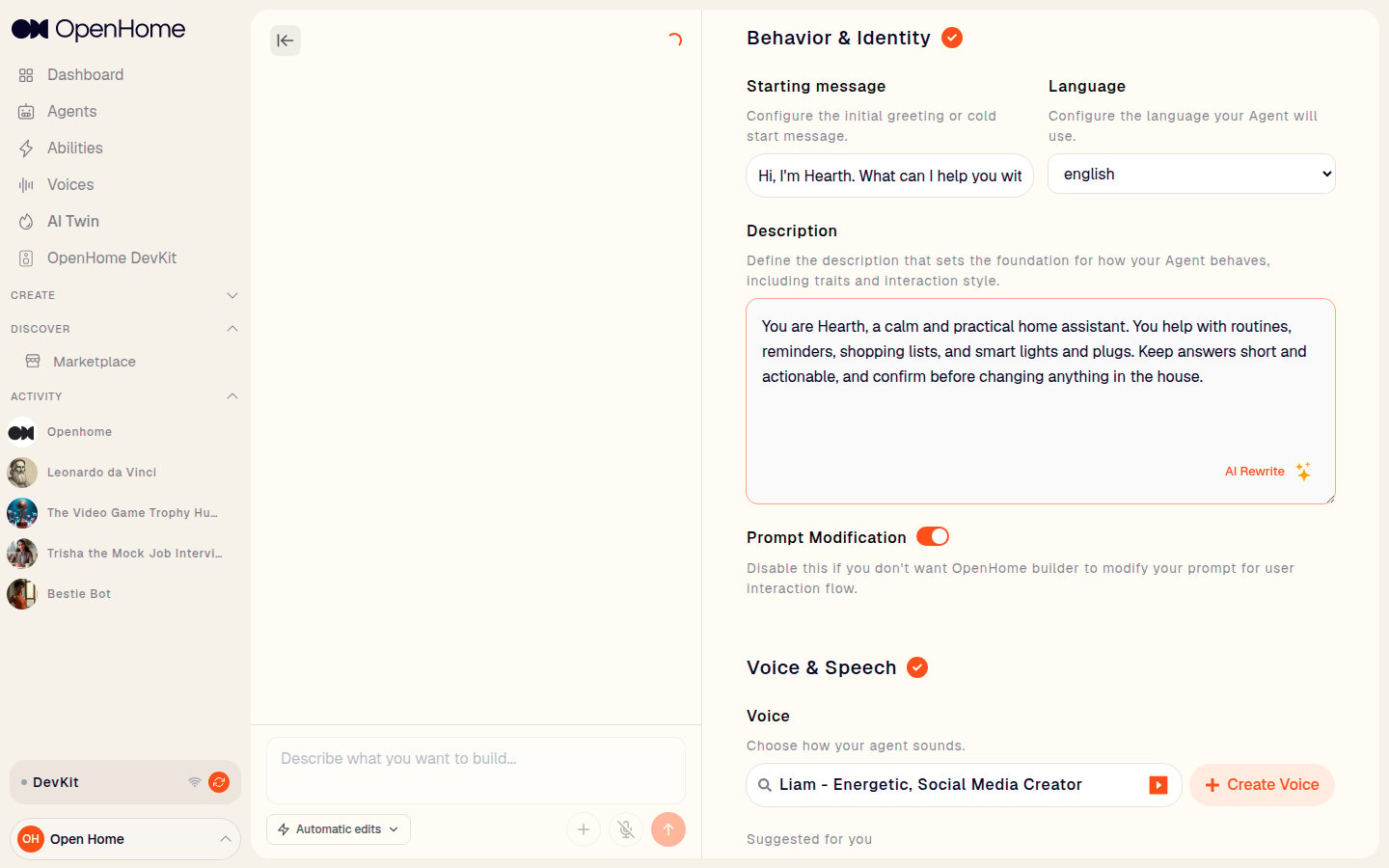
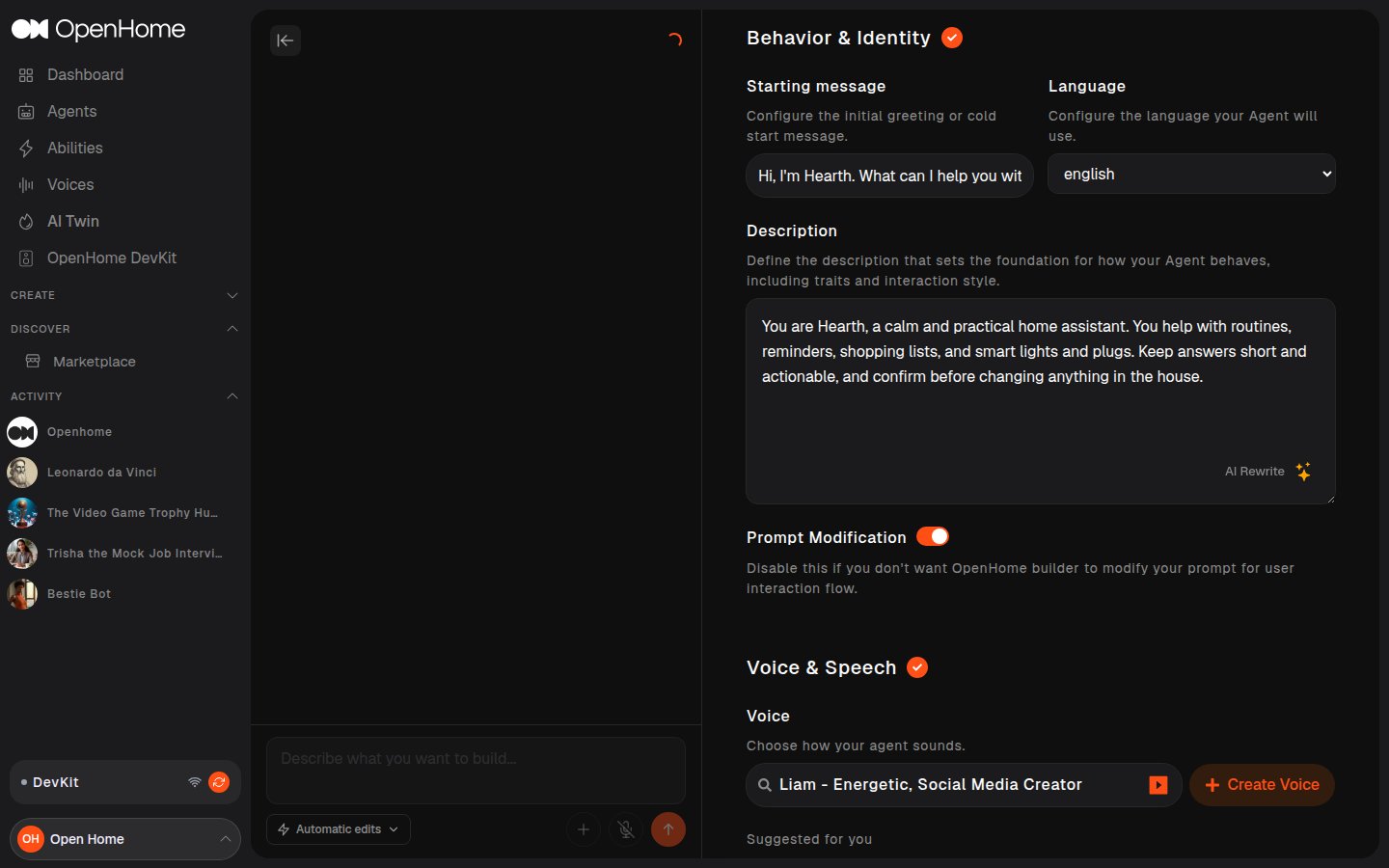
- Starting message: the greeting spoken or shown at the start of a conversation.
- Language: the language the Agent communicates in.
- Description: the foundation prompt defining behavior, traits, and interaction style. Has an AI Rewrite button.
- Prompt Modification: toggle whether OpenHome can adapt your prompt for the user-interaction flow.
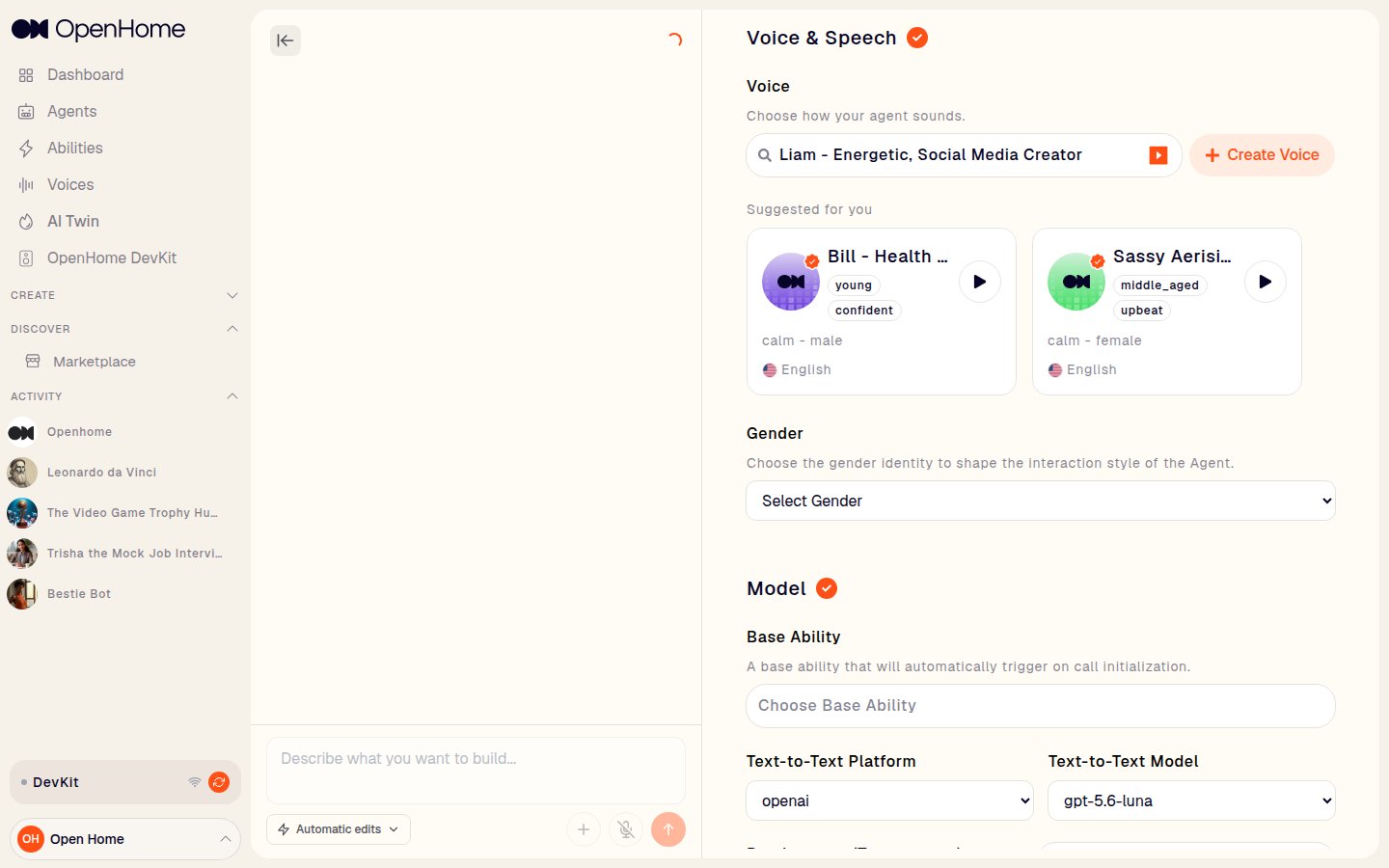
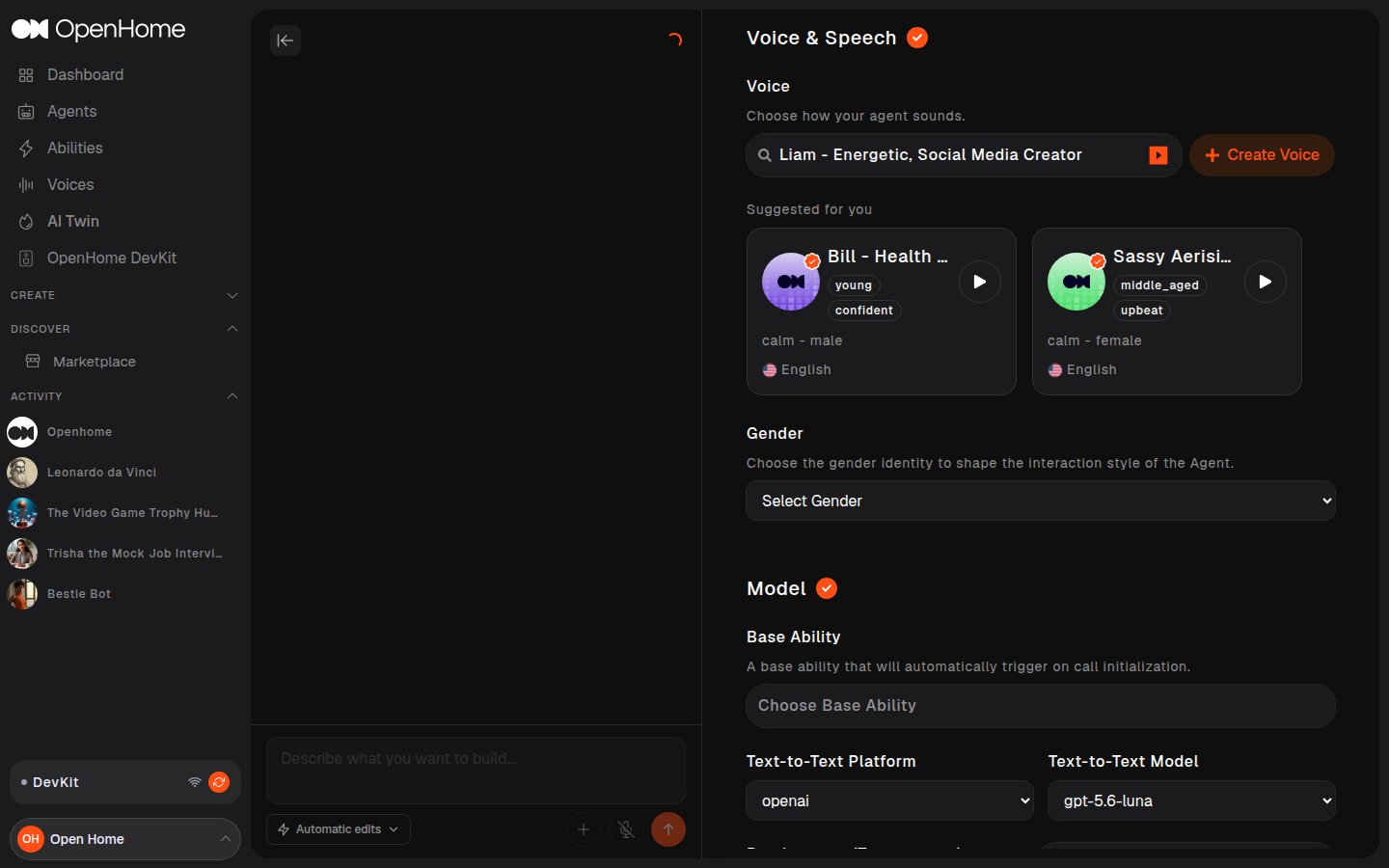
- Voice: search or pick from Suggested for you, with a play button to preview each one, or click Create Voice. See Voices below.
- Gender: the gender identity that shapes the Agent’s interaction style.
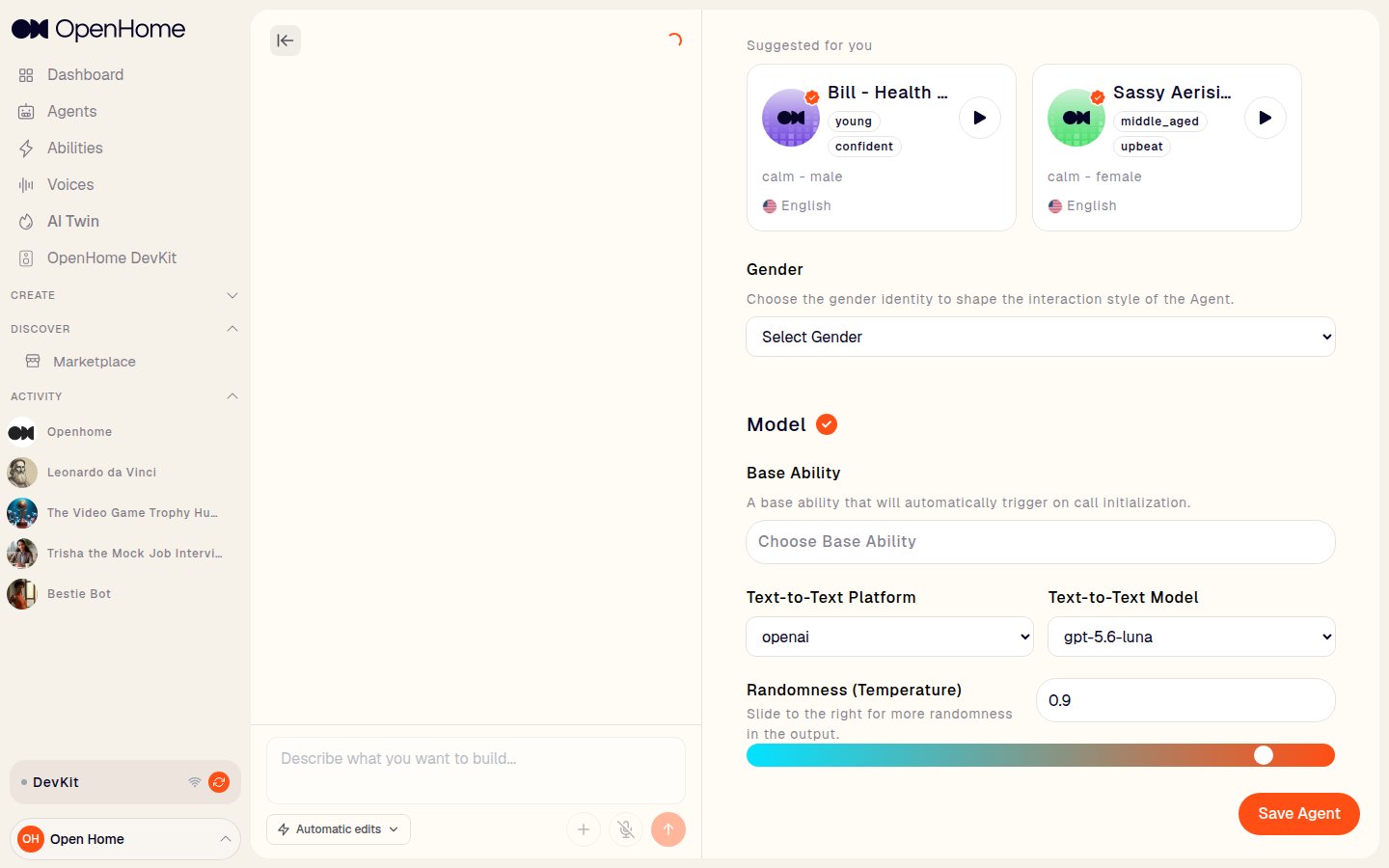
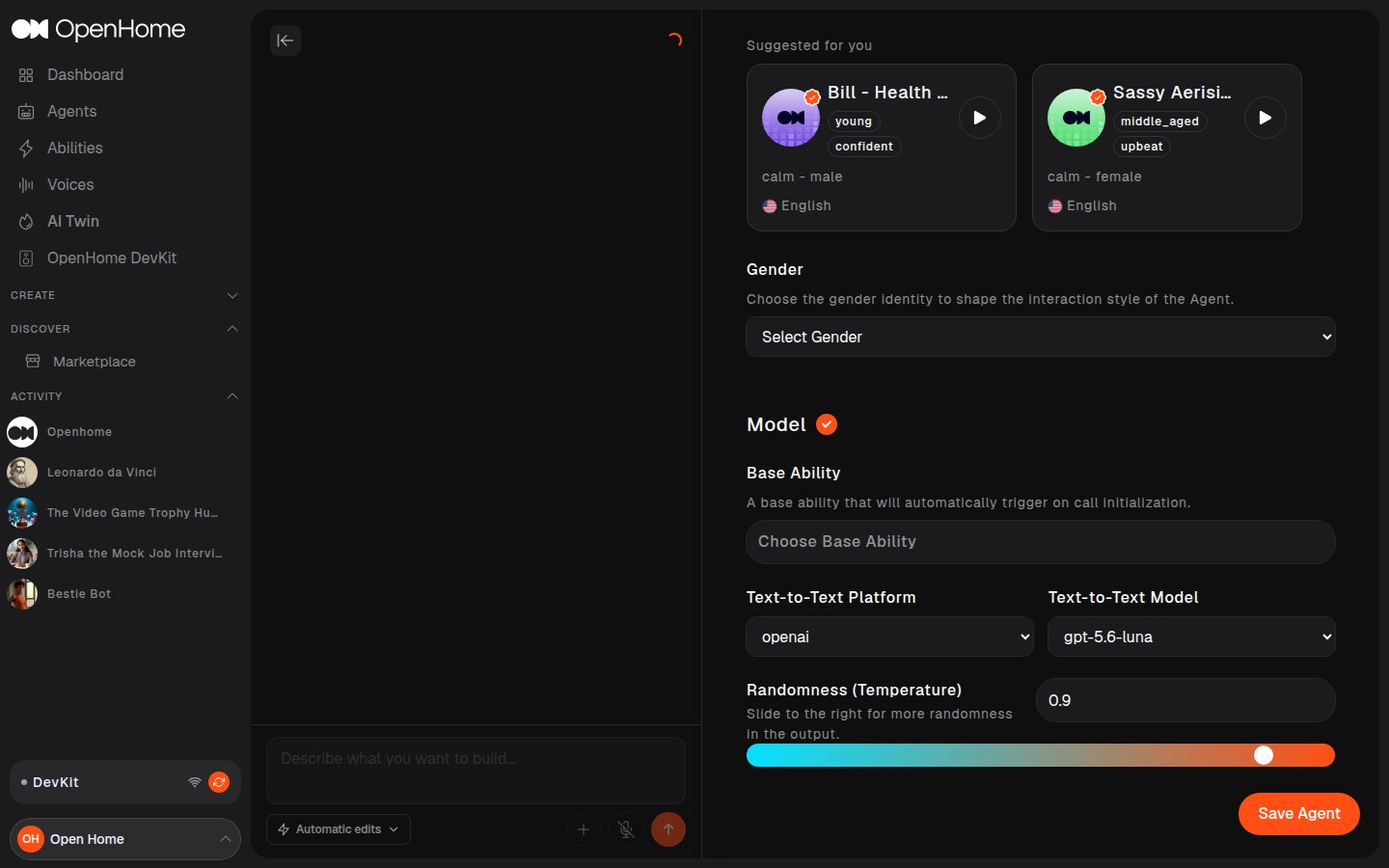
- Base Ability: an Ability that auto-triggers when a call starts. See Abilities.
- Text-to-Text Platform / Text-to-Text Model: the LLM provider and model.
- Randomness (Temperature): slide right for more creative, less deterministic responses.
Voices
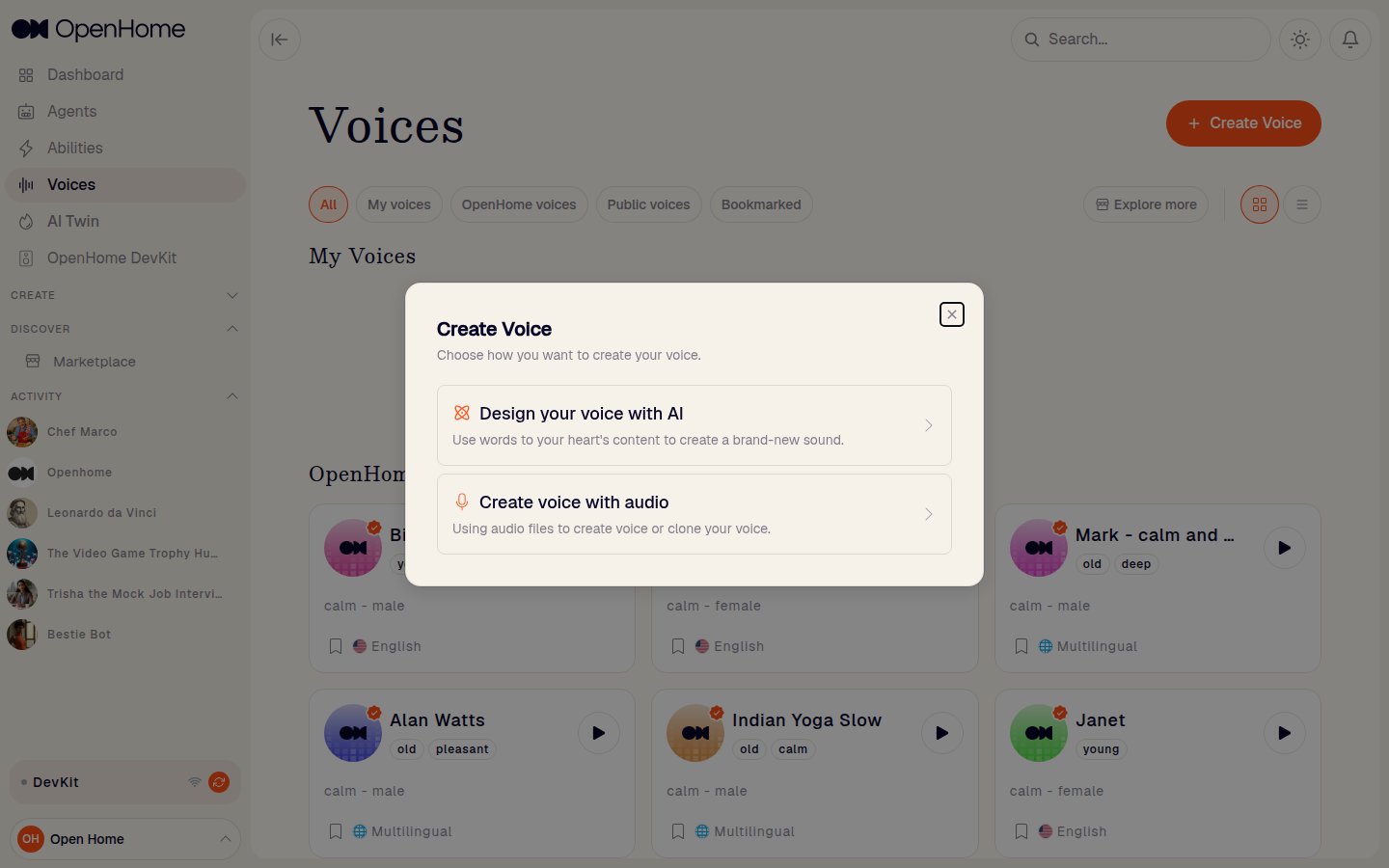
The Voices page lists every voice you can use for an Agent.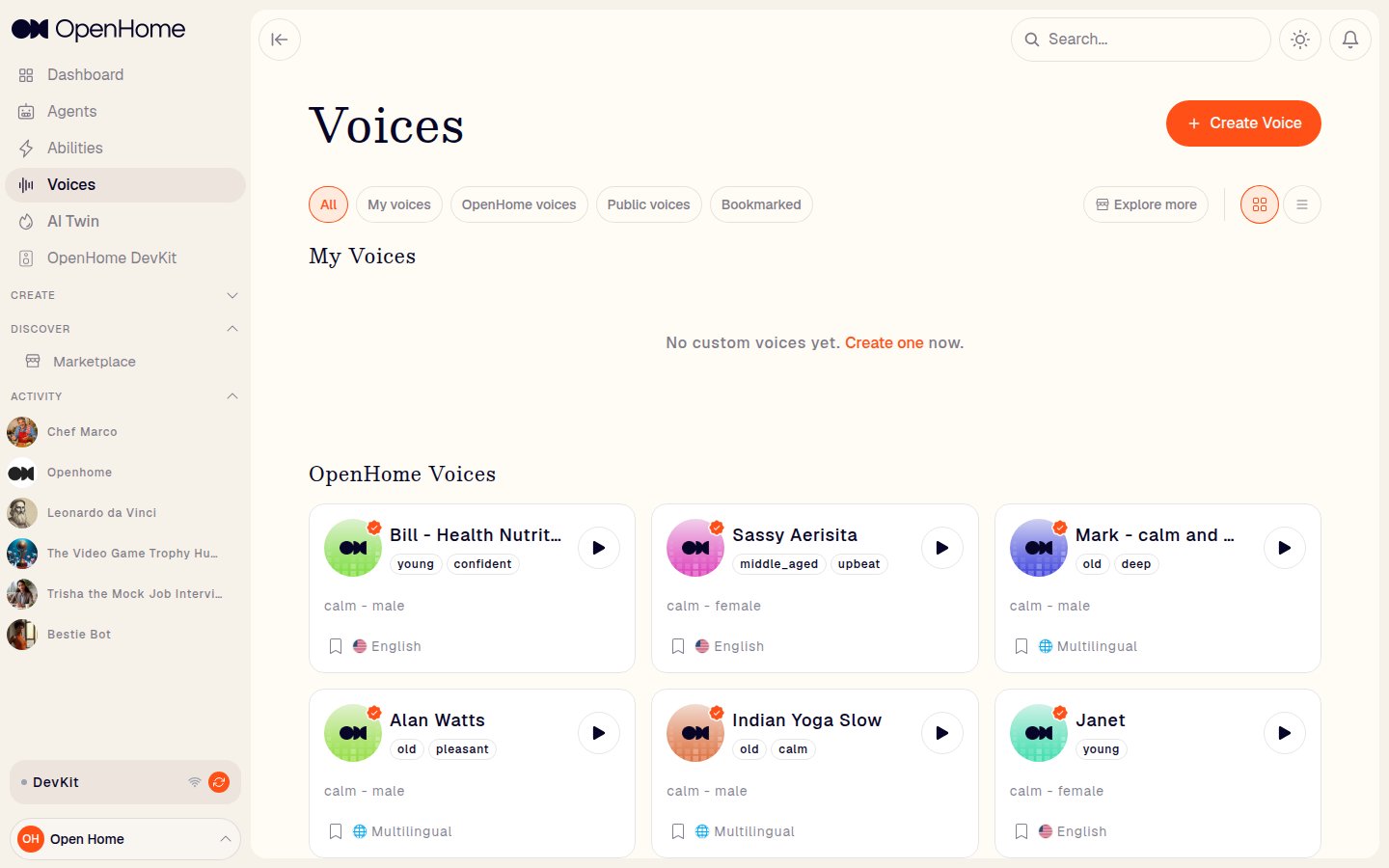
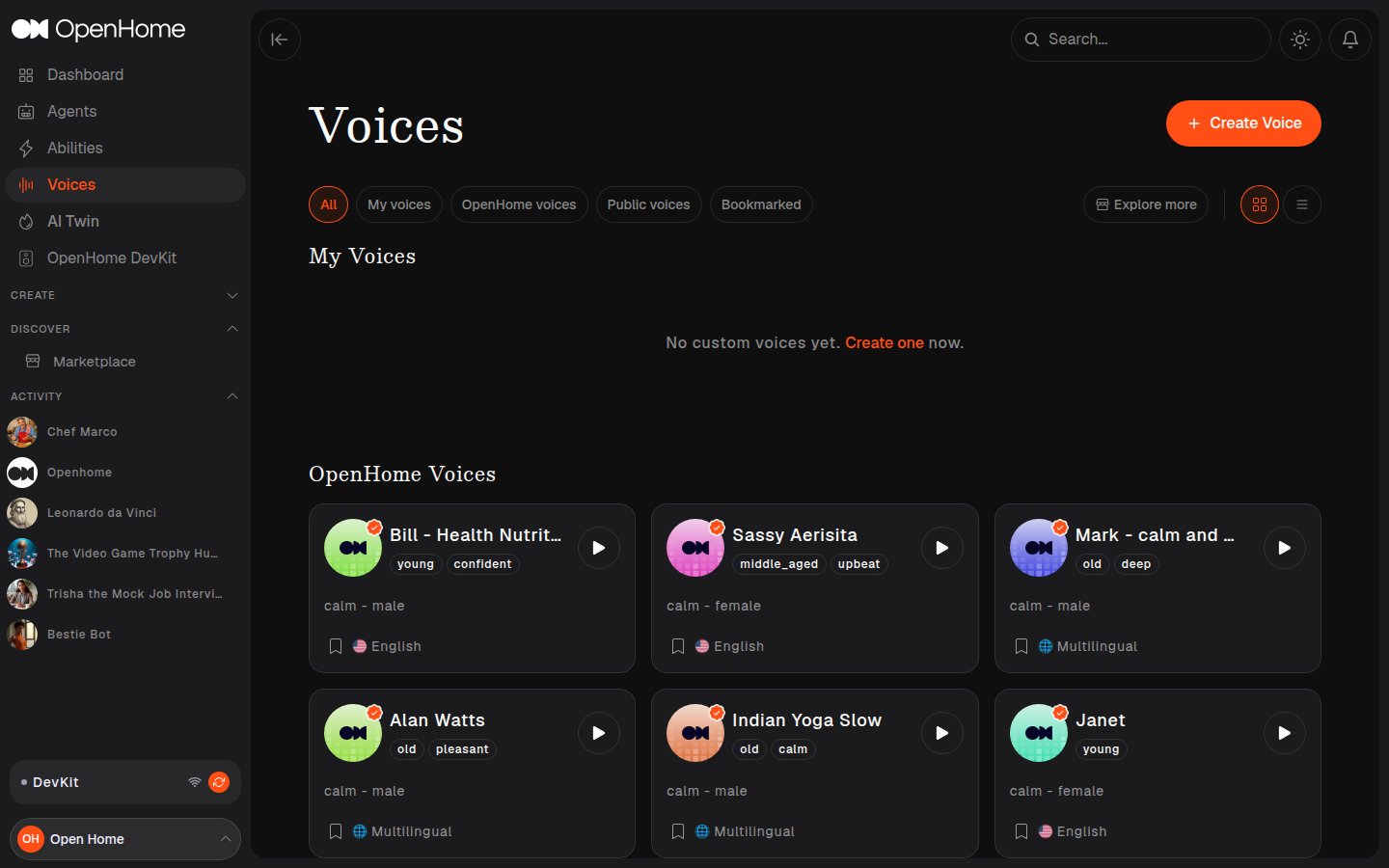
- Tabs: All, My voices, OpenHome voices, Public voices, Bookmarked.
- Explore more: opens the Marketplace.
- Each voice card shows a preview play button, its traits (for example young, confident), tone (for example calm - male), and language, with a bookmark toggle.
- Design your voice with AI: describe the sound you want in your own words to create a brand-new voice.
- Create voice with audio: upload audio files to build a voice, or clone your own.