

- You have multiple Agents in the same room or household and want each one to respond only to its own wake words. This also prevents Agents from triggering each other. Without a wake word, one Agent’s spoken reply could be picked up by another Agent as user input, causing them to talk to one another in a loop.
- You want the Agent to stay quiet during normal conversation and only engage when explicitly addressed.
- Manually, by speaking a sleep mode trigger phrase during the conversation (for example,
go to sleep modeorstop talking). - Automatically, when there is no conversation activity for the configured sleep timeout duration.
A note on STT and short utterances
Speech-to-text (STT) often delays finalizing a transcription when the user says a single short word, since it waits for more audio to confirm the utterance is complete. This can make the wake word feel slow to respond when spoken on its own. For example, if one of the configured wake words isopenhome:
This applies in both modes:
- Normal interactive mode: when the wake word is enabled, speak one of the configured wake words as part of a short sentence rather than alone. Say
openhome, what's the weather?instead of pausing afteropenhome. - Sleep mode: to wake the Agent, follow a configured wake word with a short phrase, for example
openhome, are you there?, rather than saying it in isolation.
Enable, Disable, and Change the Wake Word
The wake word can be configured from either the Dashboard or the OpenHome DevKit App. Changes apply to the Agent linked to your DevKit.From the Dashboard
- Open the Dashboard.
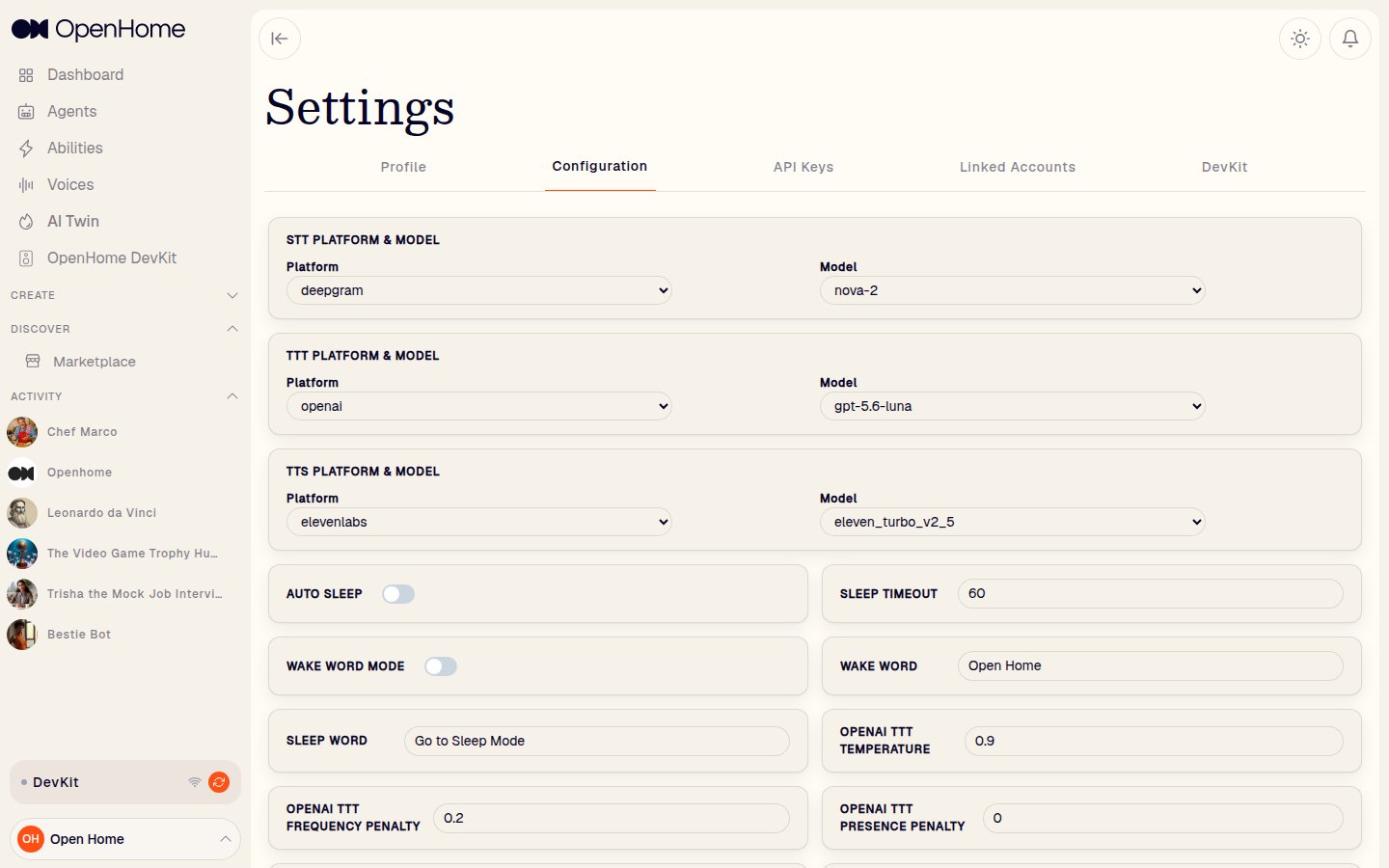
- Go to Settings → Configuration.
- Toggle Wake Word Mode on or off.
- When enabled, enter the word or phrase in the Wake Word field. Multiple wake words can be set by separating them with commas, for example,
hello, open homeconfigures bothhelloandopen homeas valid wake words, and either one can be used to address the Agent. - The Sleep Word field holds the phrase that puts the Agent to sleep, and Auto Sleep with its Sleep Timeout (in seconds) controls the automatic sleep behavior described above.

From the DevKit App
- Open the OpenHome - Voice AI DevKit App.
- Go to Profile → Configuration.
- Toggle the wake word on or off.
- When enabled, enter the word or phrase you want to use as the wake word. Multiple wake words can be set by separating them with commas, for example,
hello, open homeconfigures bothhelloandopen homeas valid wake words, and either one can be used to address the Agent. - Save your changes.


FAQ
Can I disable the wake word?
Can I disable the wake word?
Yes. Open Settings → Configuration in the Dashboard or Profile → Configuration in the DevKit App and toggle the wake word off. The Agent will then respond to every user turn during normal conversation. Sleep mode still requires one of the configured wake words to wake the Agent.
Can I change the wake word?
Can I change the wake word?
Yes. With the wake word enabled, enter your preferred word or phrase in Settings → Configuration (Dashboard) or Profile → Configuration (DevKit App). You can enter a single wake word or multiple comma-separated wake words. Choose words that are distinct from common conversational filler to reduce false triggers.
Can I set multiple wake words?
Can I set multiple wake words?
Yes. Enter multiple wake words separated by commas in the wake word field, for example
hello, open home. Each comma-separated value is treated as a distinct wake word, and any one of them can be used to address the Agent.Why isn't my wake word being detected?
Why isn't my wake word being detected?
Check the following:
- The wake word is enabled and saved in Settings → Configuration (Dashboard) or Profile → Configuration (DevKit App).
- The DevKit is online and has synced the latest configuration.
- The wake word you spoke matches one of the configured wake words, is pronounced clearly, and is not masked by background noise.
- None of the configured wake words are too short or too similar to ambient speech, which can hurt detection accuracy.
- After changing the wake word or toggling it on or off, the Agent on the DevKit must be restarted for the new configuration to take effect. Restart the Agent from the Dashboard or the DevKit App.
How the Interaction Flow Works
The wake word can be enabled or disabled. The behavior of the Agent during normal conversation depends on this setting. Sleep mode behavior is independent of this setting.Wake Word Enabled
When the wake word is enabled, the Agent only responds to user turns that contain one of the configured wake words. A wake word can appear anywhere in the utterance, it does not need to be the first word. If multiple wake words are configured, any one of them is sufficient. For example, if the configured wake word isopenhome:
This mode is useful in shared spaces, multi-device setups, or any environment where background speech should not trigger the Agent.
Wake Word Disabled
When the wake word is disabled, the Agent responds to every user turn during normal conversation. No wake word is required. This mode is useful for focused, single-user sessions where uninterrupted back-and-forth is preferred.Sleep Mode
Sleep mode pauses the Agent until it hears one of the configured wake words, regardless of whether the wake word is enabled for normal conversation.- The user triggers sleep with a Sleep Mode trigger phrase (for example,
go to sleep modeorstop talking). - The Agent enters sleep mode and stops responding to user turns.
- The user says one of the configured wake words. The Agent exits sleep mode and resumes normal conversation.
Default Sleep Mode Trigger Words
The following are the default trigger phrases used to put the Agent into sleep mode. Speaking any of them ends the active conversation and puts the Agent into sleep mode until it hears one of the configured wake words.
These trigger phrases can be changed by editing the Sleep Mode Ability in the Dashboard.