

Haven’t set up your DevKit yet? Start with Onboard DevKit with the OpenHome DevKit App.
Getting Around
The app has three tabs along the bottom:- Home: your DevKit status, controls, connectivity, and system settings
- Marketplace: browse and install Agents and Abilities
- Profile: your account, your Agents and Abilities, and app configuration
Home
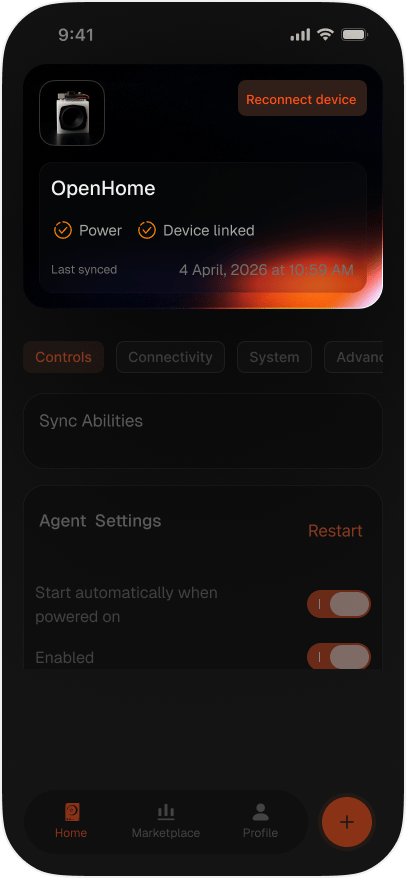
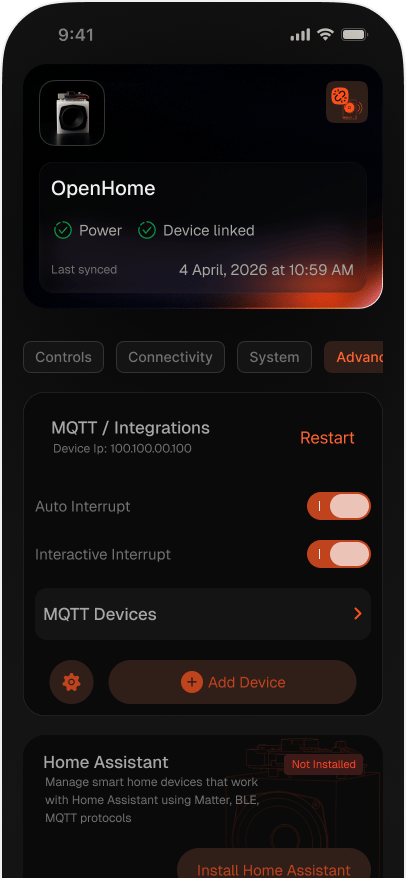
The Home tab opens on your device card, showing the device name, Power and Device linked status, and the Last synced timestamp. The icon in the top right disconnects the DevKit from the app. If the DevKit is not reachable, the card switches to a Reconnect device state and the controls below are greyed out until the connection is restored. Below the card, four tabs group everything else: Controls, Connectivity, System, and Advanced.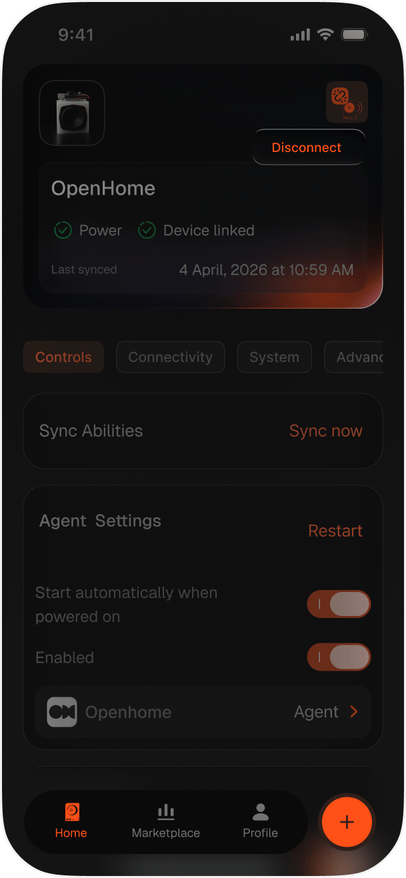
Controls
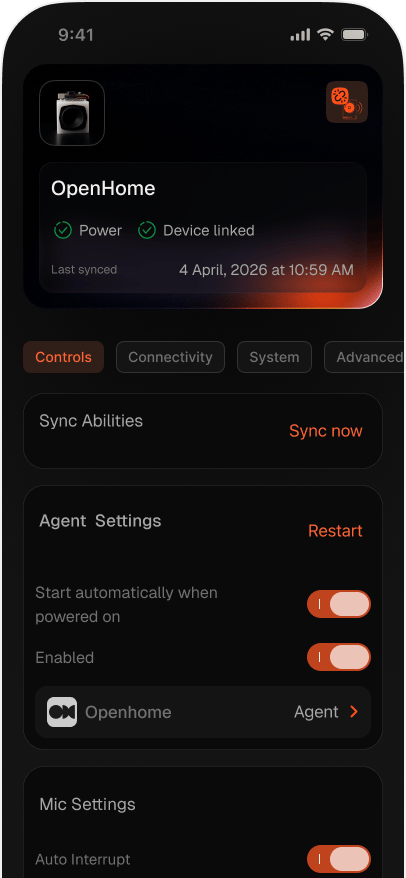
Sync Abilities: tap Sync now to sync new Local Abilities created in your account with your DevKit. See Syncing Local Abilities with the DevKit. Agent Settings- Start automatically when powered on: start the Agent as soon as the DevKit boots
- Enabled: turn the Agent on or off
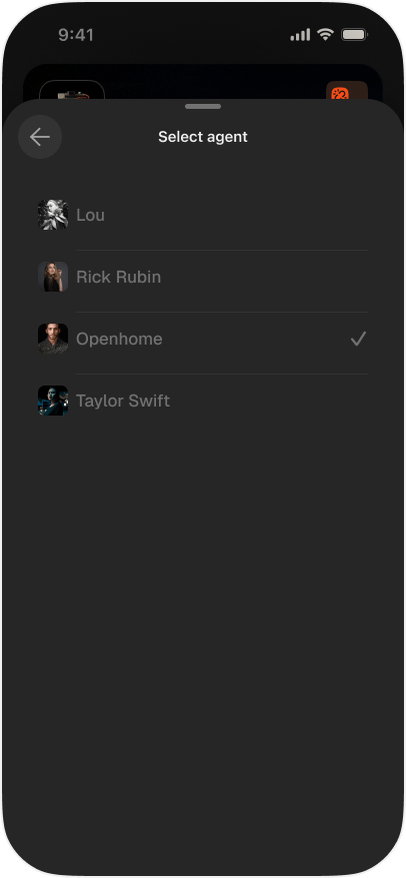
- The Agent row shows the active Agent; tap it to open Select agent and switch to another installed Agent
- Restart: restart the Agent
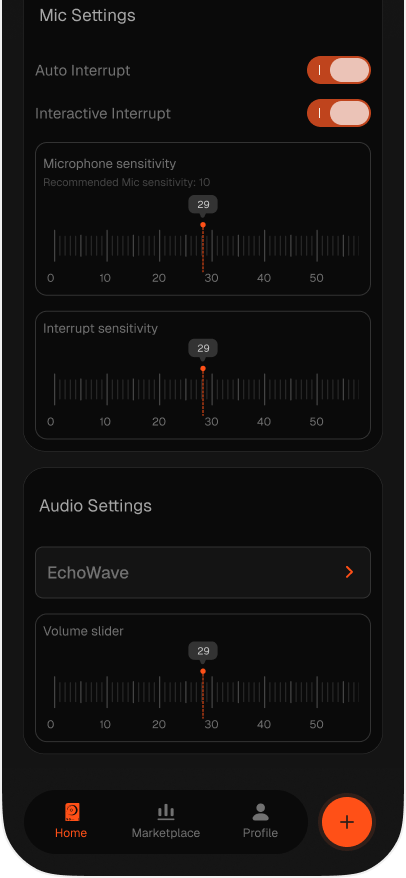
- Auto Interrupt: allow the Agent to be interrupted while it is speaking
- Interactive Interrupt: the Agent slows down and listens while you speak
- Microphone sensitivity: how sensitive the microphone is to sound. The screen shows the recommended value beneath the label
- Interrupt sensitivity: how readily the Agent treats speech as an interruption
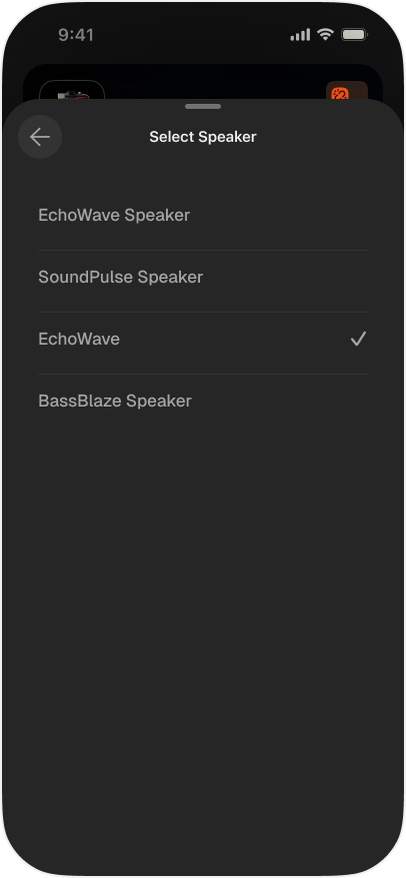
- The speaker row shows the active output device; tap it to open Select Speaker and choose another
- Volume slider: set the output volume
Connectivity
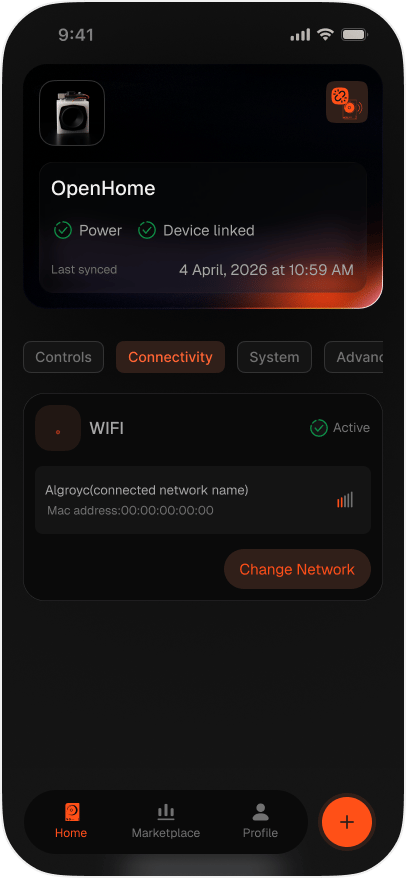
The Wi-Fi card shows whether the connection is Active, along with the connected network name, MAC address, and signal strength. Tap Change Network to connect the DevKit to a different network.System
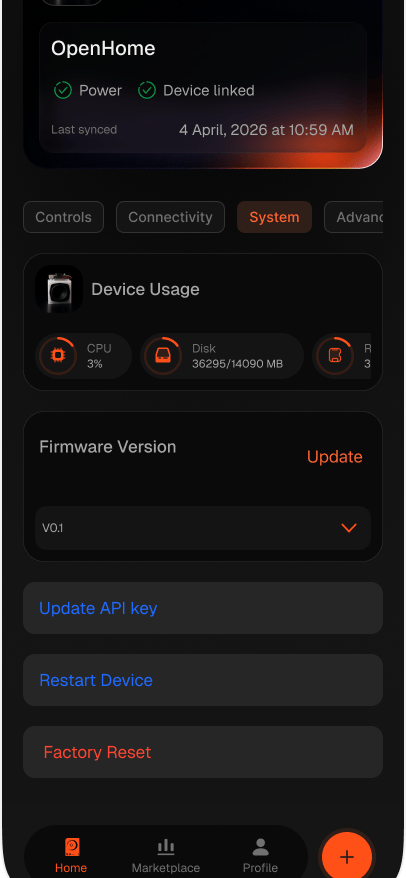
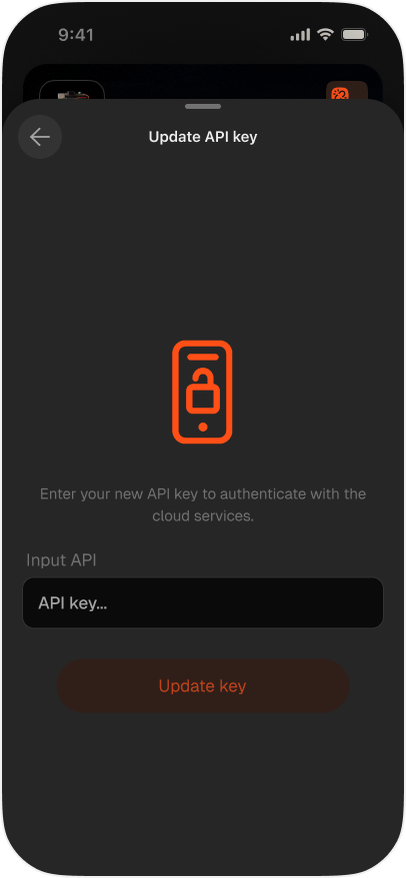
Device Usage reports CPU, Disk (used against total), and RAM for the DevKit. Firmware Version shows the installed version in a dropdown, with Update to apply a different one. Three actions sit below:- Update API key: enter a new API key to switch the DevKit to that account
- Restart Device: restarts the DevKit, with a confirmation prompt
- Factory Reset: erases all settings and returns the device to its original state
Advanced
MQTT / Integrations shows the DevKit’s Device IP and offers Restart to restart the MQTT client. Below it:- MQTT Devices: view and manage the devices already added
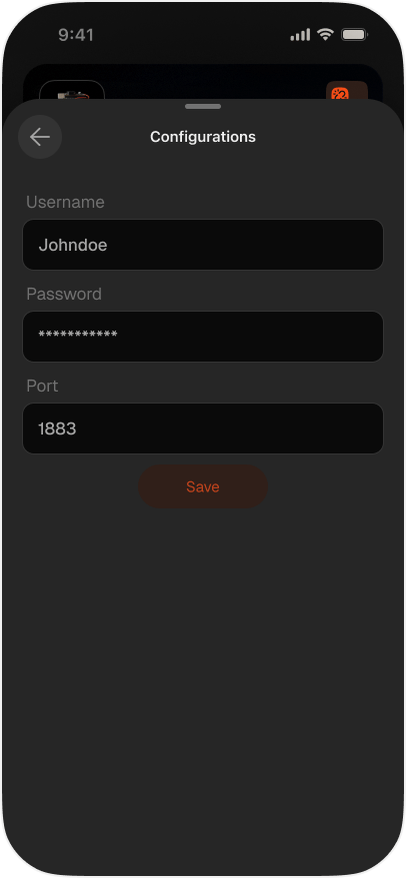
- The settings icon opens Configurations, where you set the broker Username, Password, and Port (the default port is
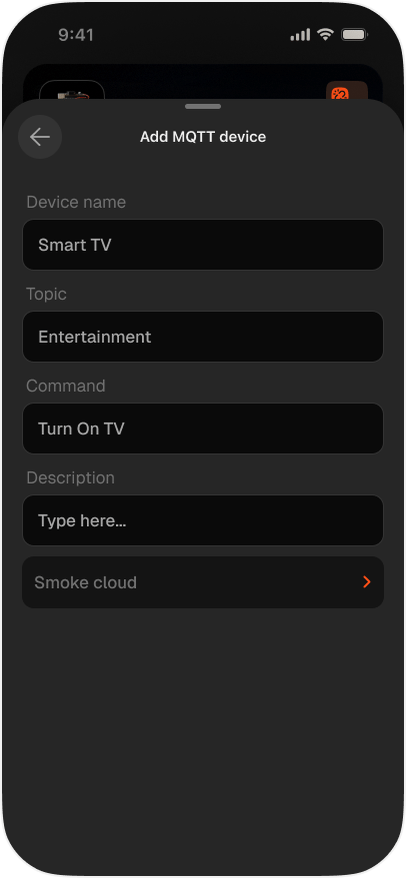
1883) - Add Device: register a new MQTT device with a Device name, Topic, Command, optional Description, and a device type
Marketplace
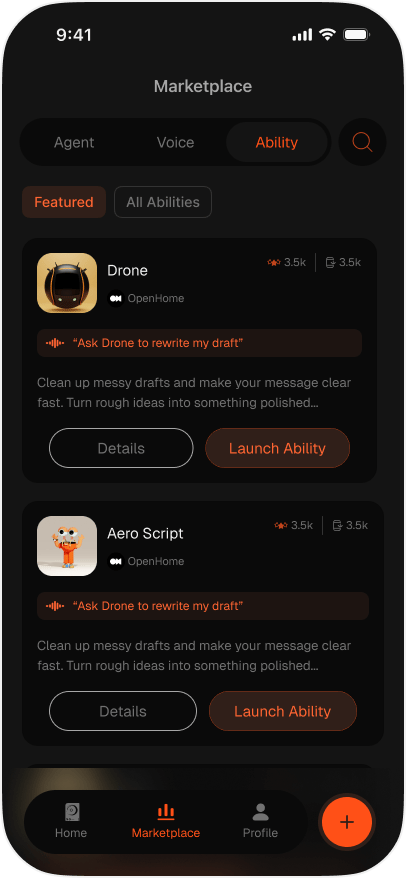
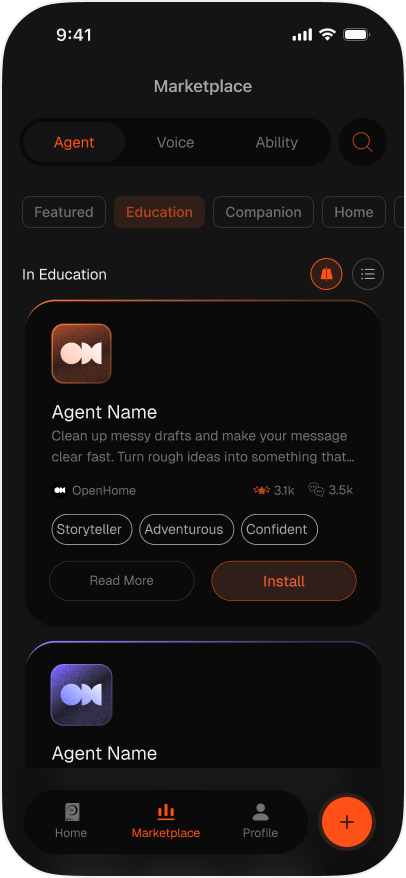
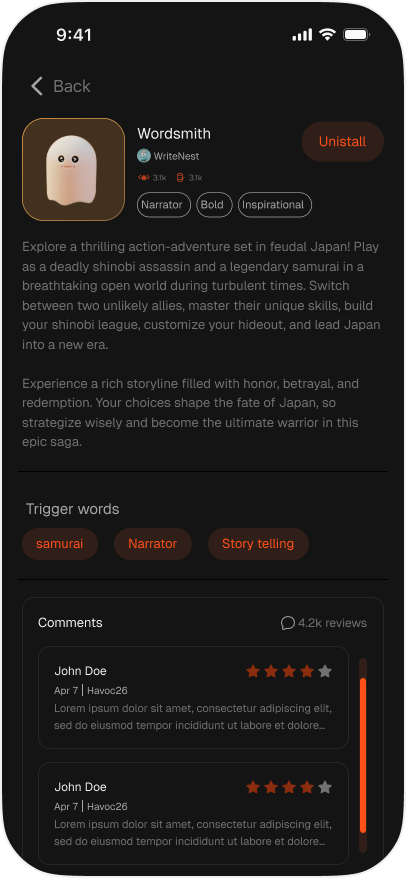
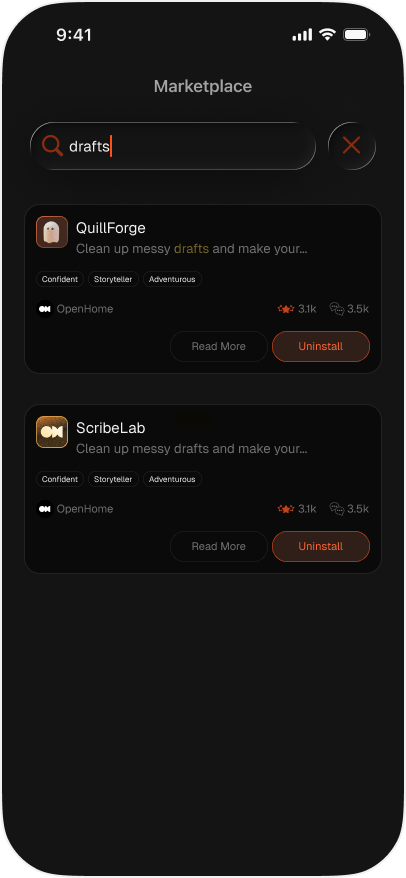
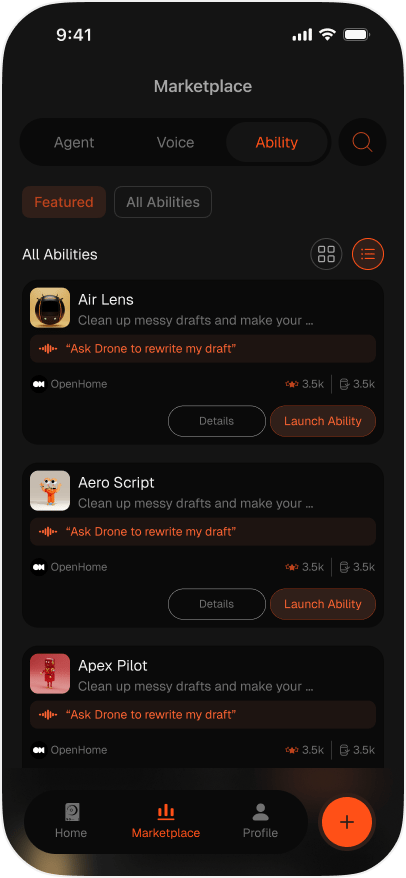
The Marketplace is where you find new Agents and Abilities for your DevKit, each with its own search. Agents are listed by category, starting with Featured. Each card shows the author, install and usage counts, and trait tags, with Read More for the full listing and Install to add it. Installed Agents show Uninstall instead. Abilities are filtered by Featured and All Abilities. Each card shows an example trigger phrase, with Details for the full listing. Results can be shown as a grid or a list. An Agent’s listing page includes its full description, Trigger words, and community Comments with star ratings.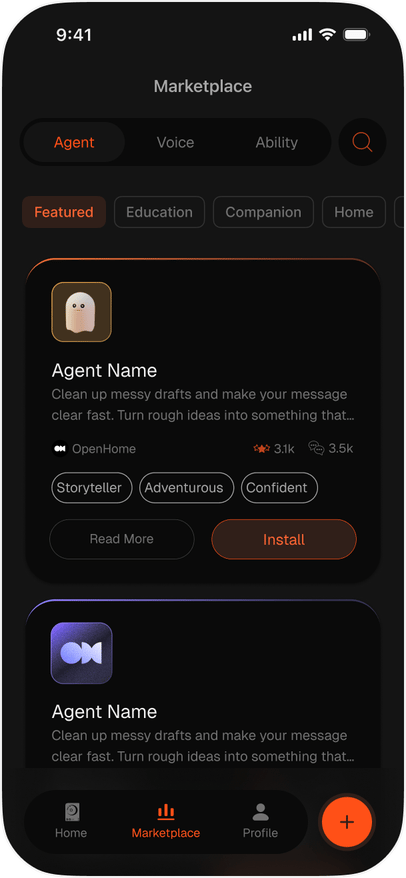
Profile
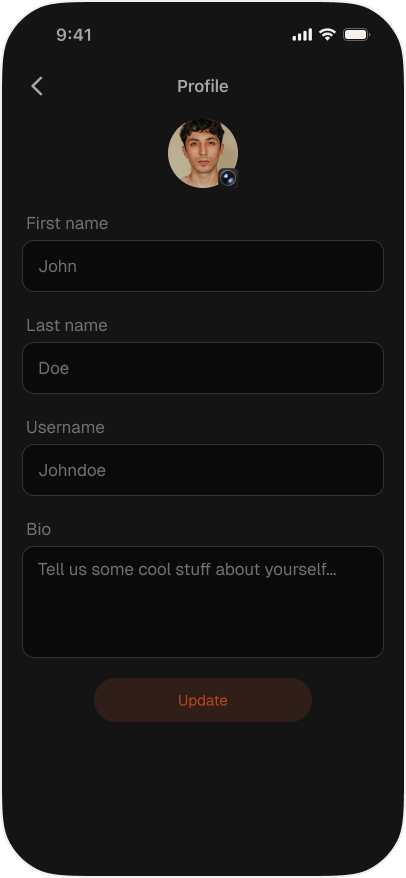
The Profile tab opens on your account, with your name and email at the top. Tapping it opens the editor for First name, Last name, Username, and Bio. From here you can reach Agents and Abilities, open Configuration, and set Appearance to System, Dark, or Light. Help & Support and About sit below. The account actions at the bottom are Sign Out and Delete Account.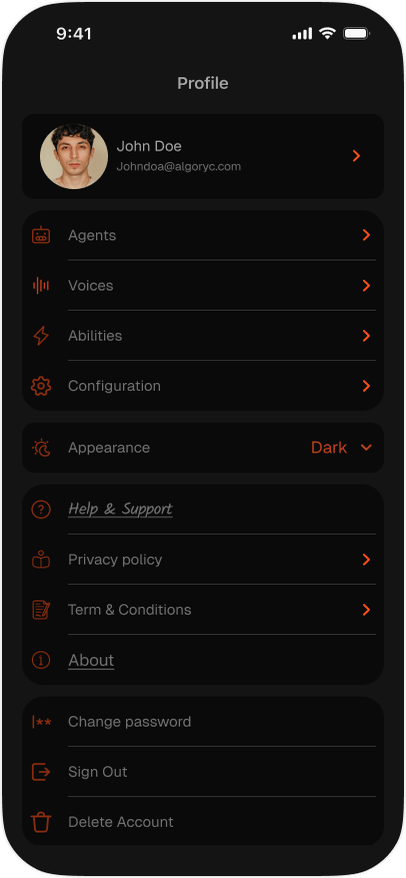
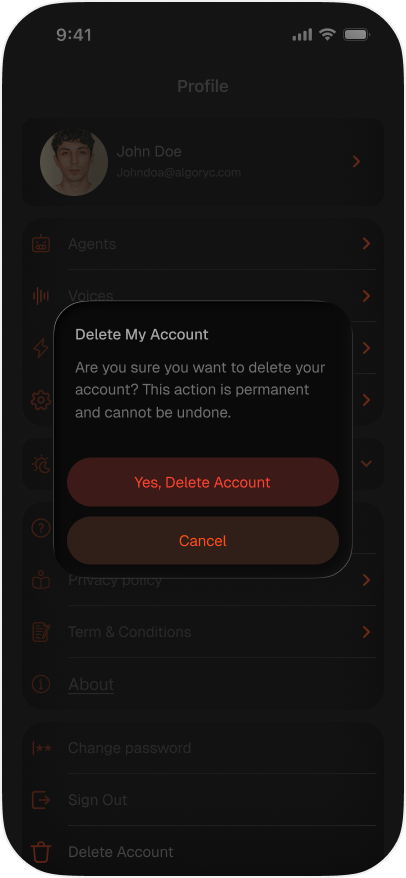
Agents and Abilities
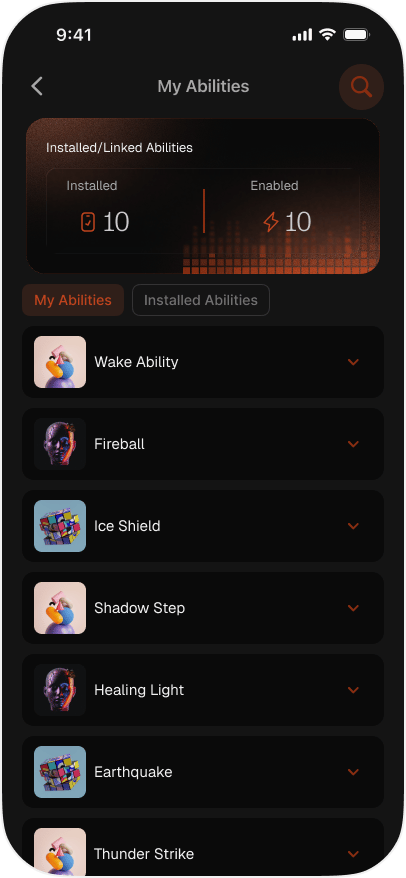
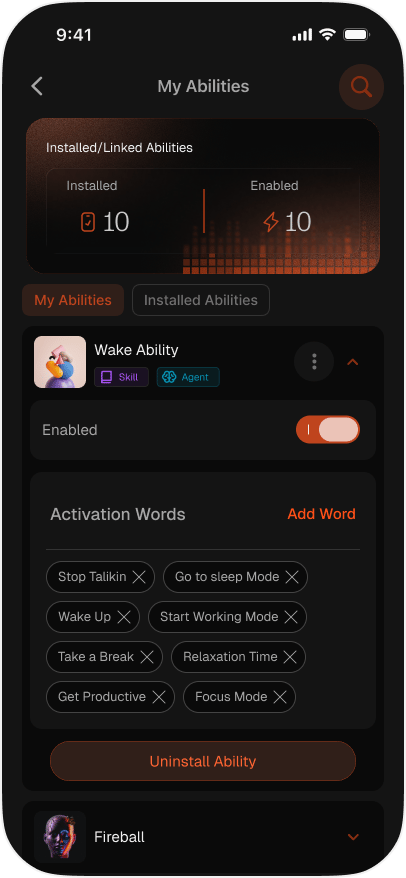
Agents lists the Agents on your account, separating My Agents from Installed Agents. Open one to see its details, or uninstall it. Abilities opens on a summary of how many Abilities are Installed and how many are Enabled, then lists them. Expanding one reveals an Enabled toggle, its trigger words, and Uninstall Ability. Use Add Word to add one, or the cross on a chip to remove one.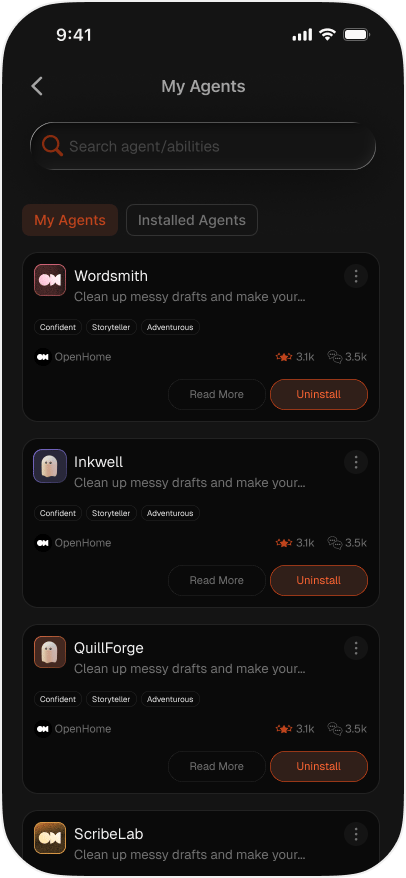
Configuration
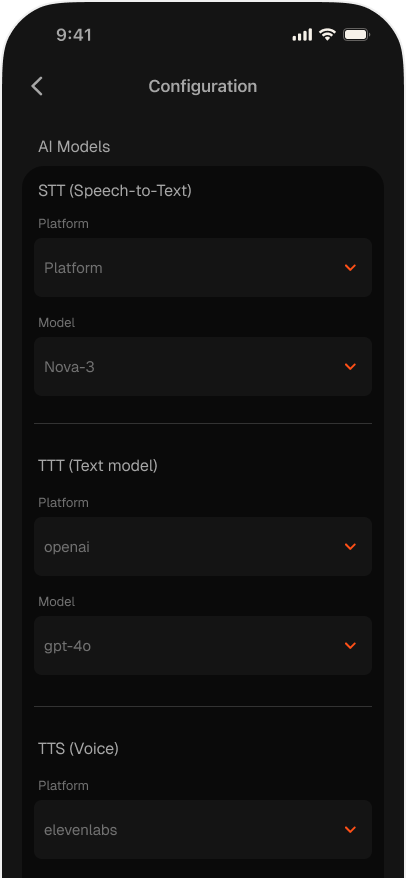
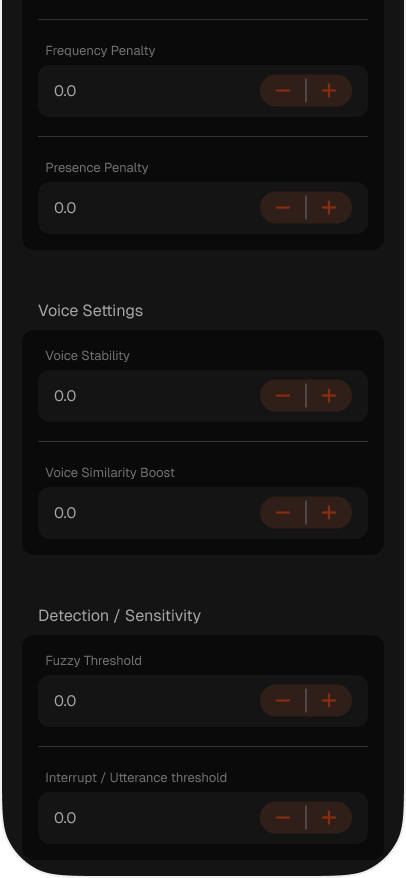
Configuration controls how your Agent listens, thinks, and speaks. AI Models- STT (Speech-to-Text): the platform and model used to transcribe speech
- TTT (Text model): the platform and model used to generate responses
- TTS (Voice): the platform and model used to speak them
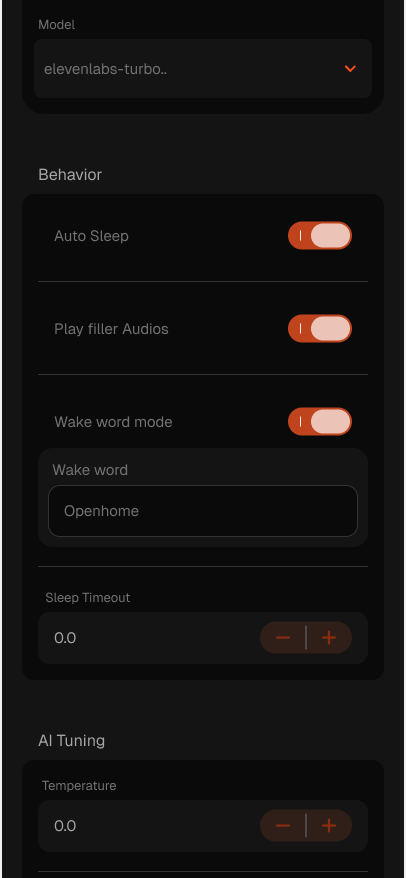
- Auto Sleep: let the Agent sleep after a period of inactivity
- Play filler Audios: play a short sound while the Agent is thinking
- Wake word mode: require a wake word to address the Agent, set in the Wake word field below the toggle. See Wake Word & Sleep Interaction
- Sleep Timeout: how long to wait before sleeping
Looking for More Control?
OpenHome also offers a Web Dashboard where you can build Agents, write Abilities in the Live Editor, manage your account, and reach features beyond what the app exposes.See also
- Onboard DevKit with the OpenHome DevKit App: set up a new DevKit
- Web Dashboard: manage your Agents, Abilities, and account from the web
- Agents: learn how voice Agents work on the OpenHome DevKit
- Abilities: extend your Agent with custom Python-based skills
- Local Ability: build Abilities that run directly on the OpenHome DevKit hardware