

Don’t have an iOS device? You can onboard your OpenHome DevKit using the Terminal instead. See Onboard OpenHome DevKit via Terminal.
Prerequisites
Before starting, ensure you have the following:- An OpenHome account at app.openhome.com
- An iPhone running iOS 17.0 or later
- Your home Wi-Fi name and password
OpenHome - Voice AI DevKit App
Download on the App Store
Onboarding Steps
Get Started- Turn on your OpenHome DevKit and open the OpenHome - Voice AI DevKit App on your iPhone. Tap Get Started to begin the setup.


- The app will scan for your OpenHome DevKit and list your device. Select your device from the list and tap Connect Device.
- The app will show Device Connected and you will hear a sound from your DevKit.
- If you didn’t hear a sound, tap Try Again.
- If you heard it, tap Yes, I heard it.


- Select your home Wi-Fi network from the list and enter the password. This network will be connected to your DevKit. Once connected, you will hear a confirmation sound from your DevKit.

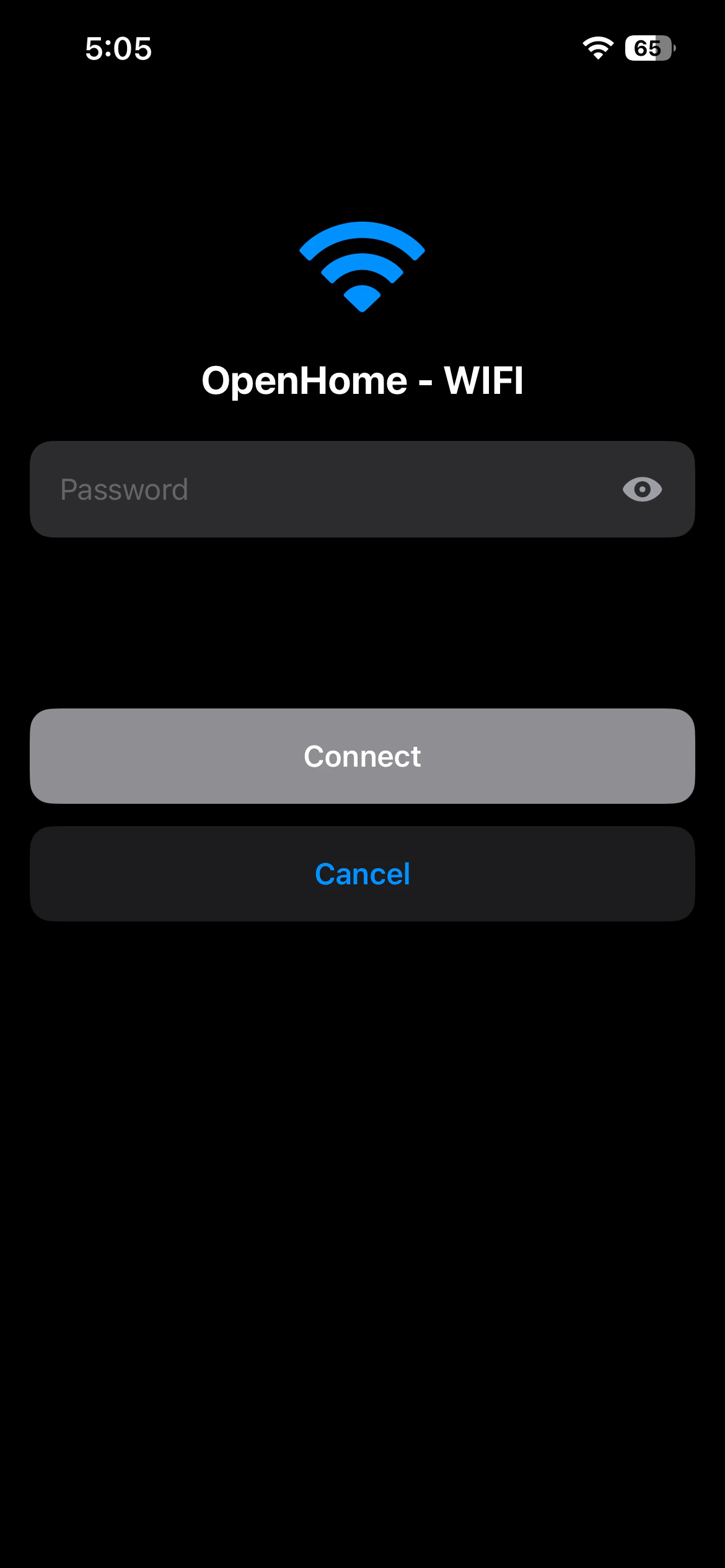

- Once connected to Wi-Fi, tap Continue.
- Sign in to your OpenHome account using Continue with Apple, Continue with Google, or Sign in with Email. If you don’t have an OpenHome account, sign up at app.openhome.com.
- Once signed in, the app will move to configuring the device. When configuration is complete, you will hear a sound from the DevKit, and then the Agent will speak its starting message.


- The Agent on the DevKit will speak its welcome message, and your DevKit will appear as connected on the app dashboard.

See also
- OpenHome - Voice AI DevKit App Overview — full overview of the OpenHome - Voice AI DevKit App
- Agents — learn how voice Agents work on the OpenHome DevKit
- Abilities — extend your Agent with custom Python-based skills
- Local Ability — build Abilities that run directly on the OpenHome DevKit hardware