

This guide is for developers setting up OpenHome on their own Raspberry Pi who do not have an official OpenHome DevKit.
Prerequisites
- Raspberry Pi (Zero 2 W, Pi 4, or Pi 5)
- SD card (8GB minimum)
- USB card reader or adapter
- Your Pi’s recommended charger
- Bluetooth speaker
- USB microphone
- Computer with internet access
Step 1: Download Required Software
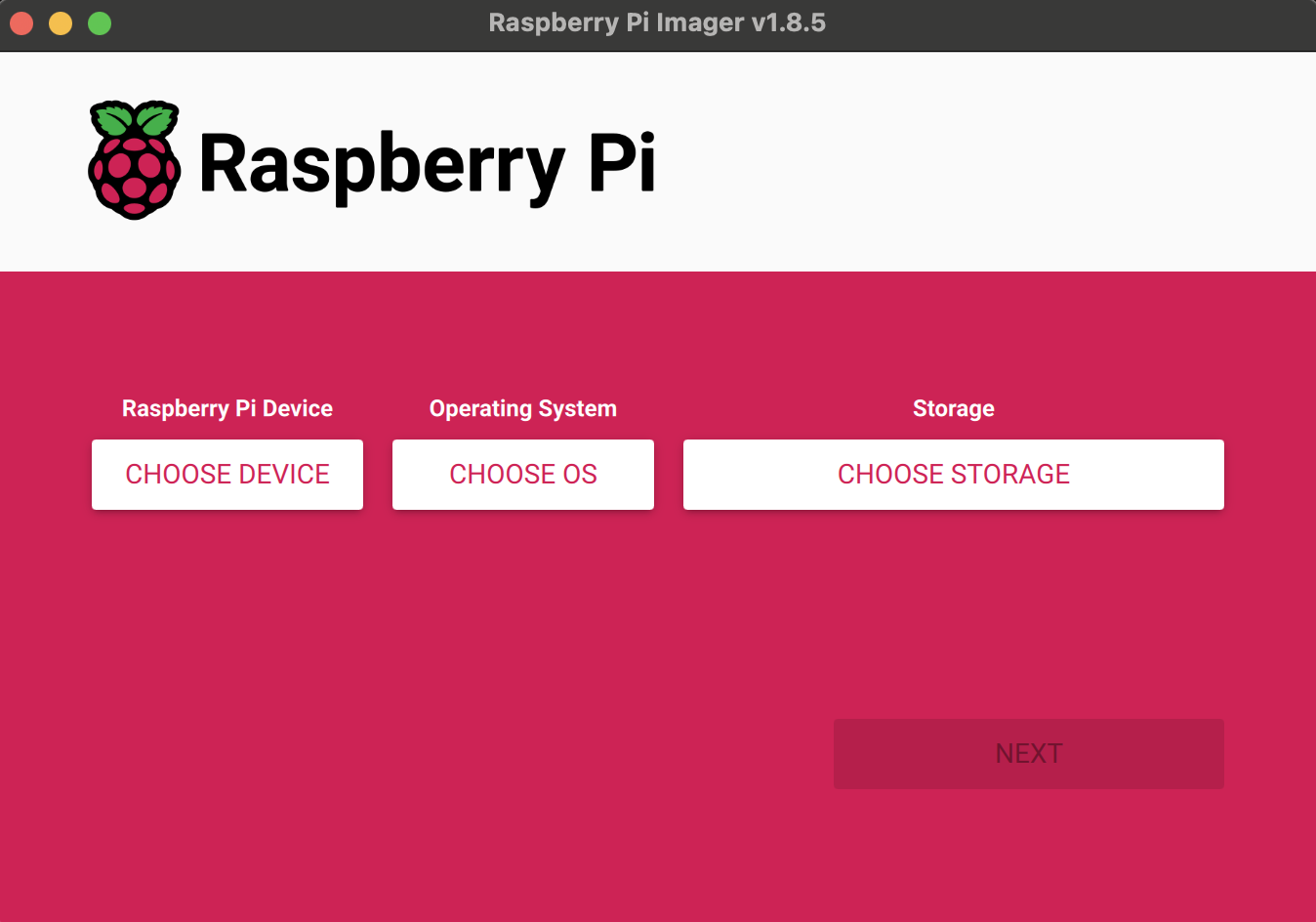
- Download Raspberry Pi Imager from the official Raspberry Pi website for your operating system and install it.
- Download the OpenHome DevKit OS image from here.
Step 2: Burn the OpenHome Image to the SD Card
- Insert your SD card into the USB card reader and connect it to your computer.
- Open Raspberry Pi Imager, click Choose Device and select your Raspberry Pi model.
- Click Choose Operating System → Use custom → select the downloaded OpenHome image file.
- Click Choose Storage and select your SD card.
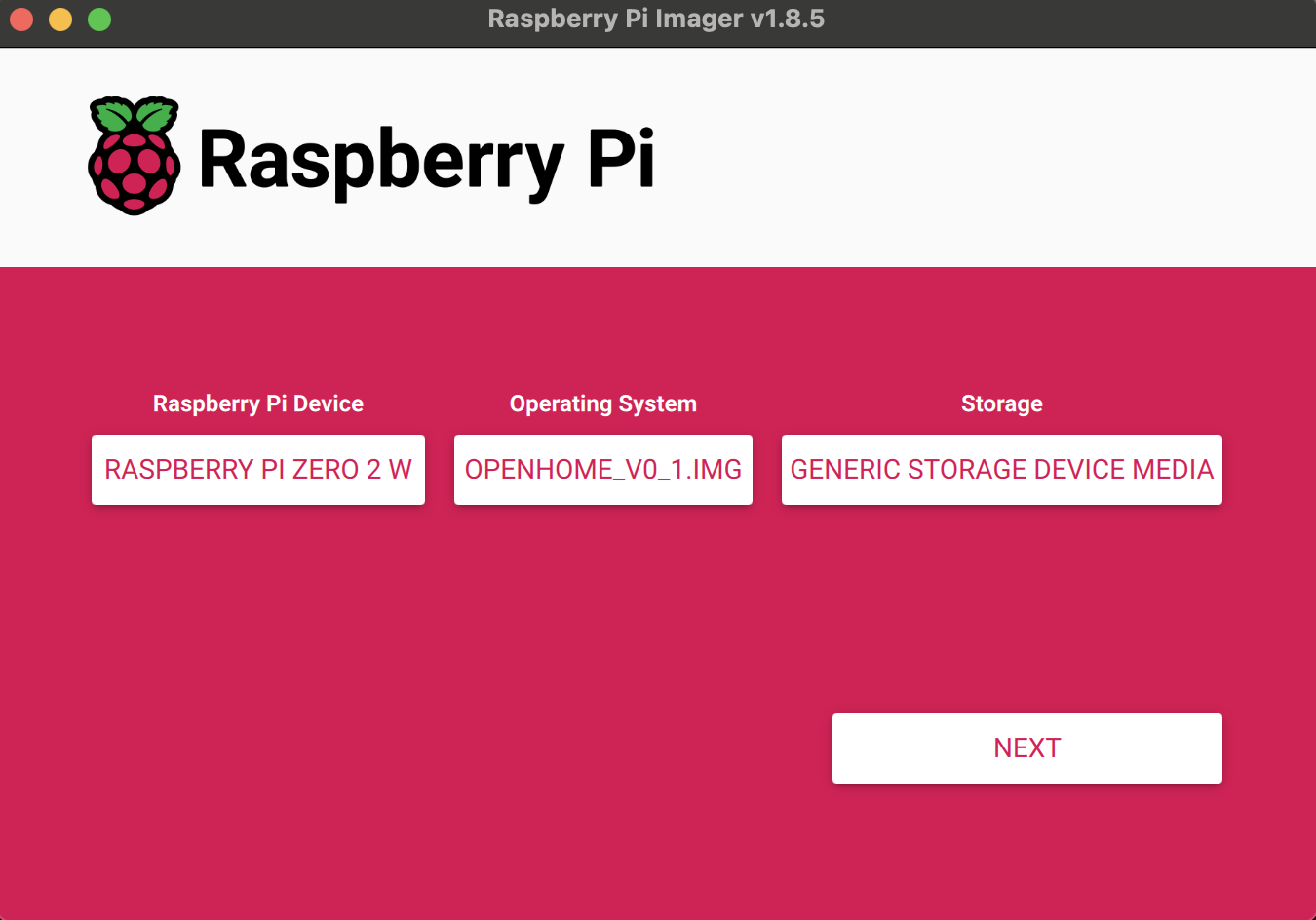
- Click Next. When prompted, click
Noand continue.
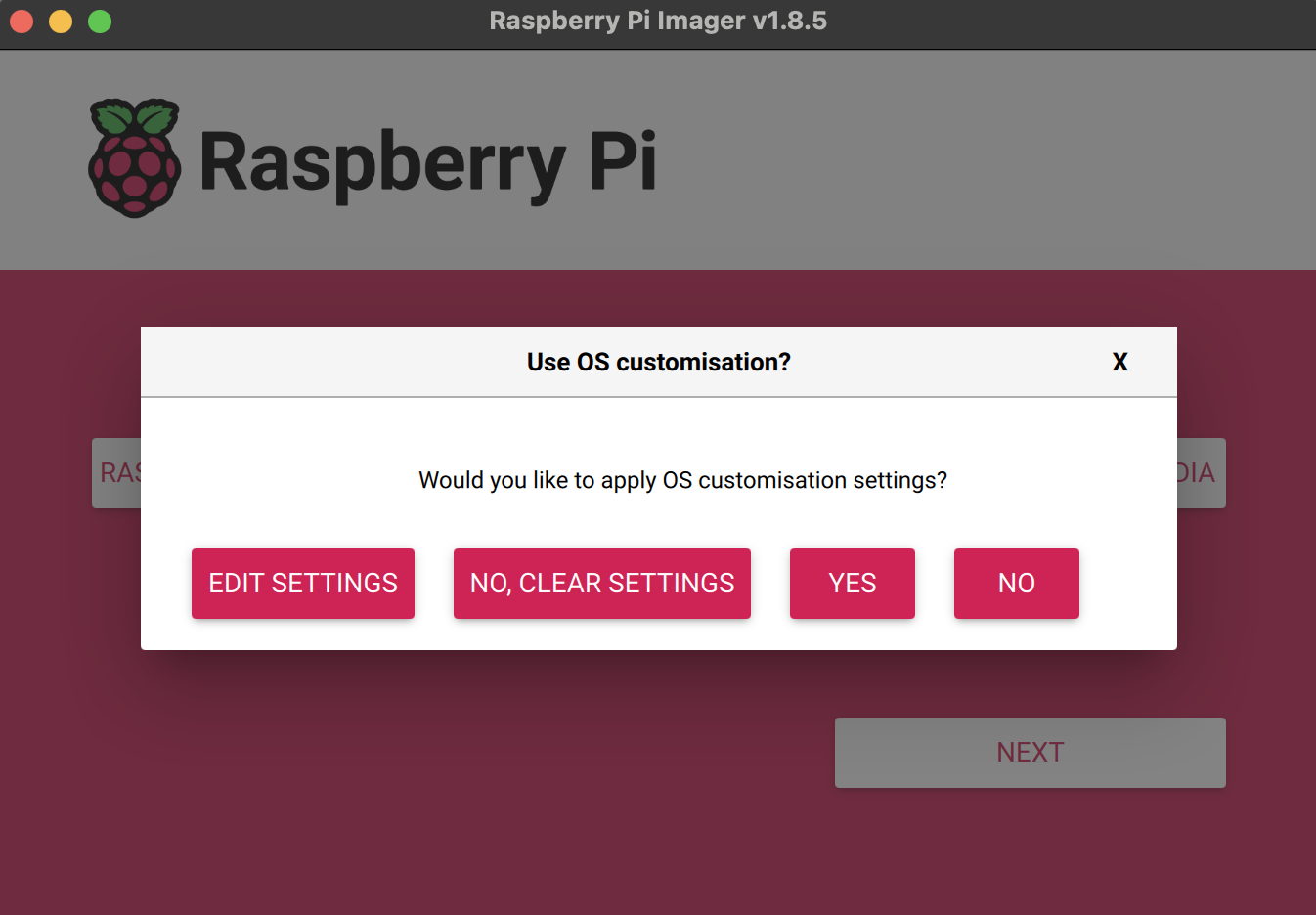
- Click Write to burn the image. This may take a few minutes.
Step 3: Set Up the Raspberry Pi
- Insert the SD card into your Raspberry Pi.
- Connect your Raspberry Pi to power and turn it on.
Step 4: Create a New User on OpenHome
- If you don’t have an account, create one at app.openhome.com.
- If you already have an account but no password set, use Forgot Password or set one from Profile → Settings.
Step 5: Connect to OpenHome Wi-Fi
- Connect your device to the Wi-Fi network named
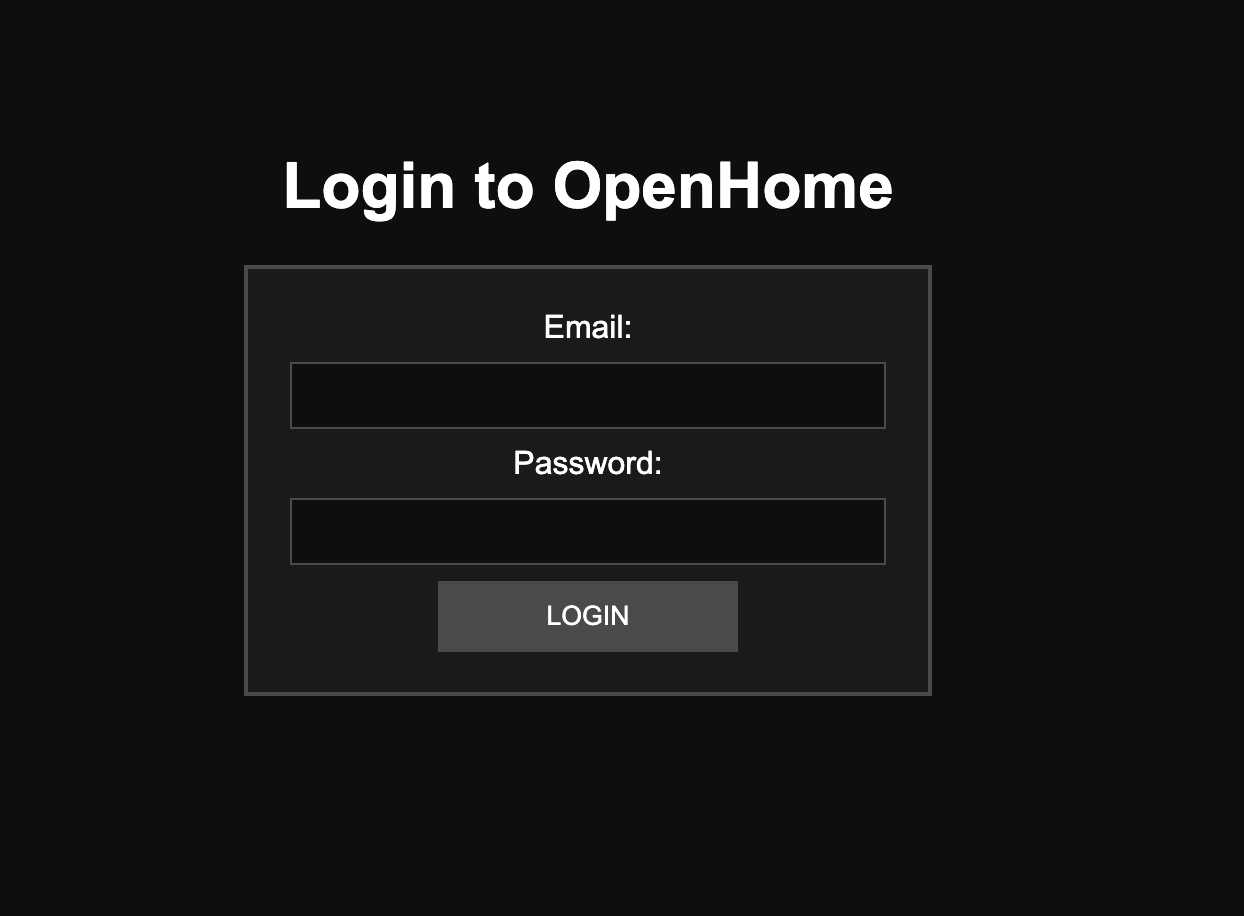
OpenHome_MACADDRESS. - The setup page should open automatically. If it doesn’t, open a browser and go to http://192.168.50.1.
- Follow the on-screen instructions to configure your Wi-Fi and log in with your OpenHome credentials.
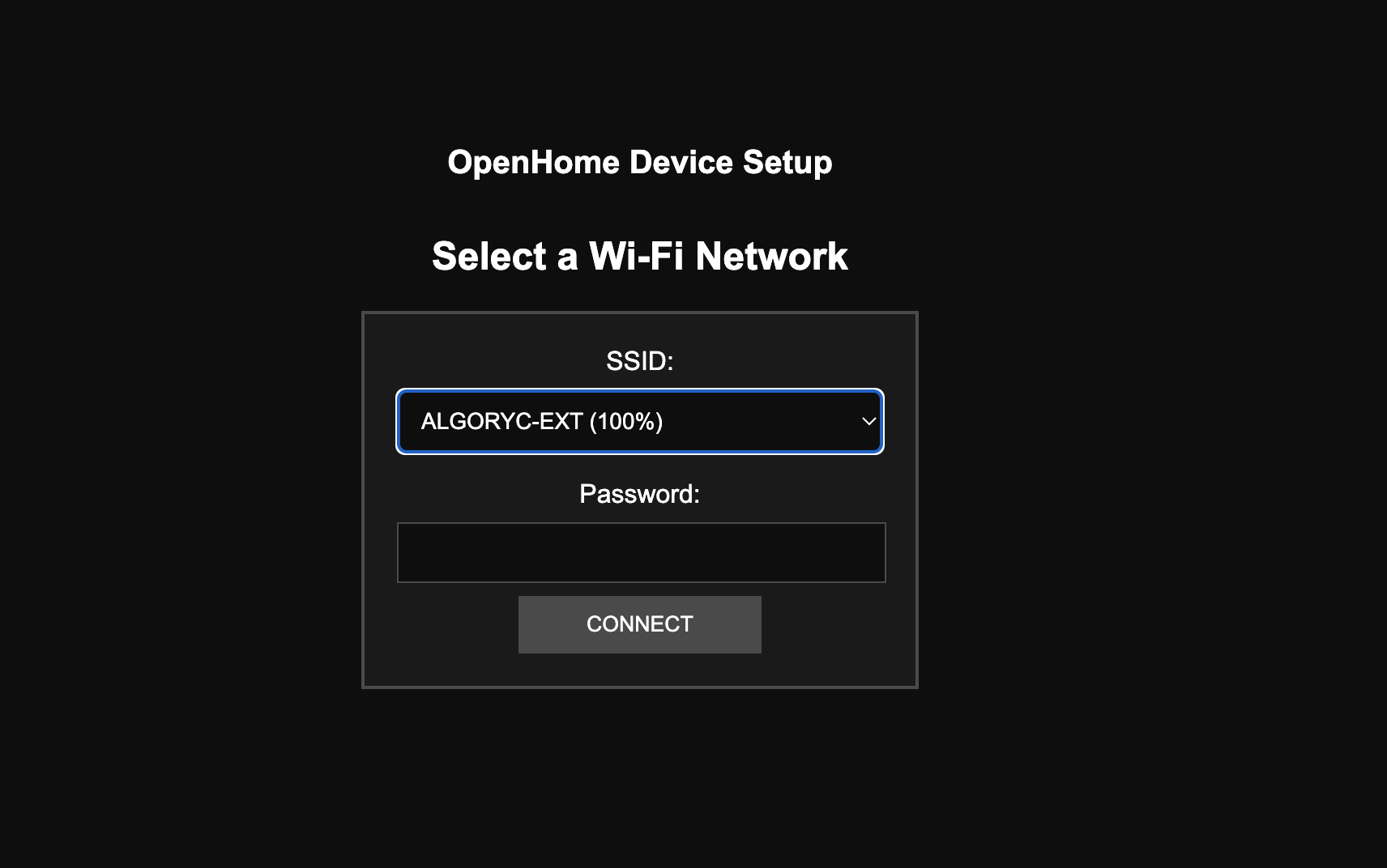
- Once complete, you will see a success status.

Step 6: Connect to Your Internet Wi-Fi
- Disconnect from
OpenHome_MACADDRESSand reconnect to your regular home Wi-Fi. - Go to app.openhome.com and log in with the same account.
Step 7: Configure Bluetooth Speaker
- Navigate to Profile → Settings → DevKit. Your device should be listed as connected.
- Turn on Bluetooth on your speaker.
- Click Scan Bluetooth Devices in the OpenHome app and select your speaker from the list.
- Ensure the profile is set to a2dp-sink. If it doesn’t appear, try reconnecting.
- Connect your USB microphone to the Raspberry Pi and set the default input to analog-mono.
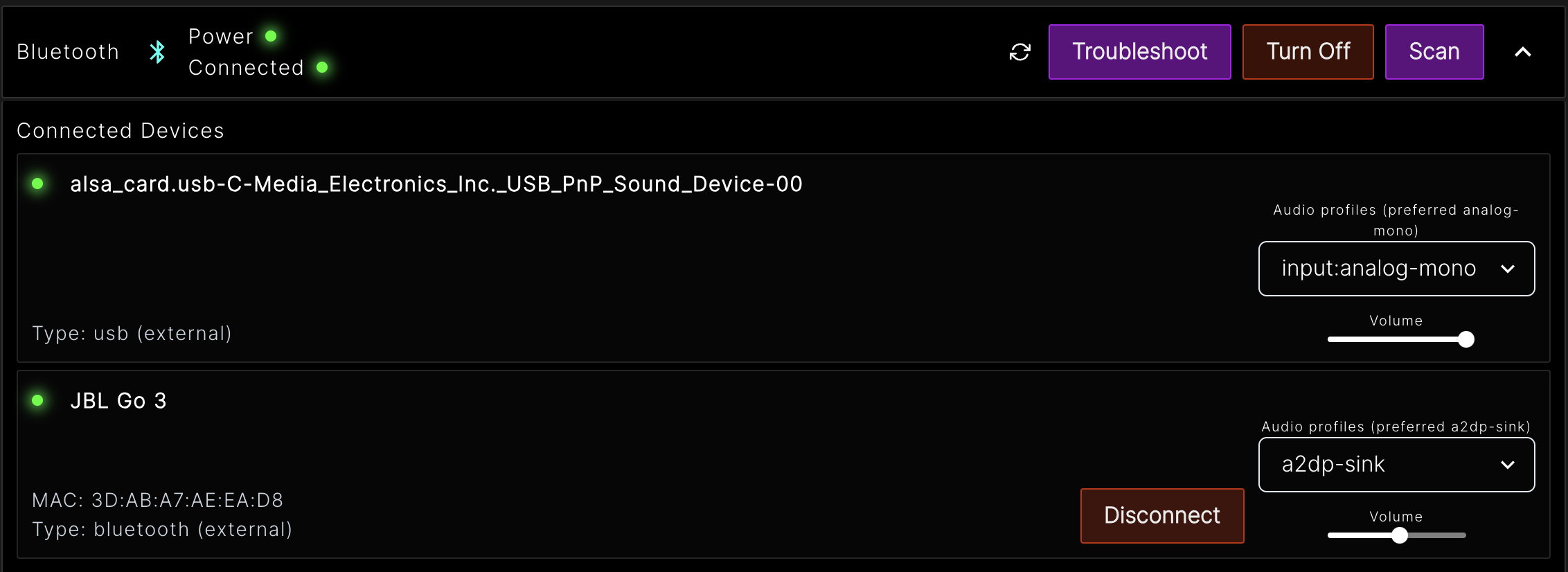
You should see two connected devices: a mic and a speaker. Known limitation (current OpenHome Pi Zero image): interruption is not supported yet.
- The call should start automatically. If it doesn’t, click Restart Agent.