

This guide is for users without an iPhone. If you have an iOS device, we recommend the OpenHome - Voice AI DevKit App for the easiest setup.
Prerequisites
- Python 3.8 or later installed on your computer
- Bluetooth enabled on your computer
- Your home Wi-Fi name and password
- An OpenHome account at app.openhome.com
Step 1: Install the Required Library
Open your terminal and run:Step 2: Download the OpenHome Client
openhome_client.py
Download the OpenHome Client script
Step 3: Run the OpenHome Client
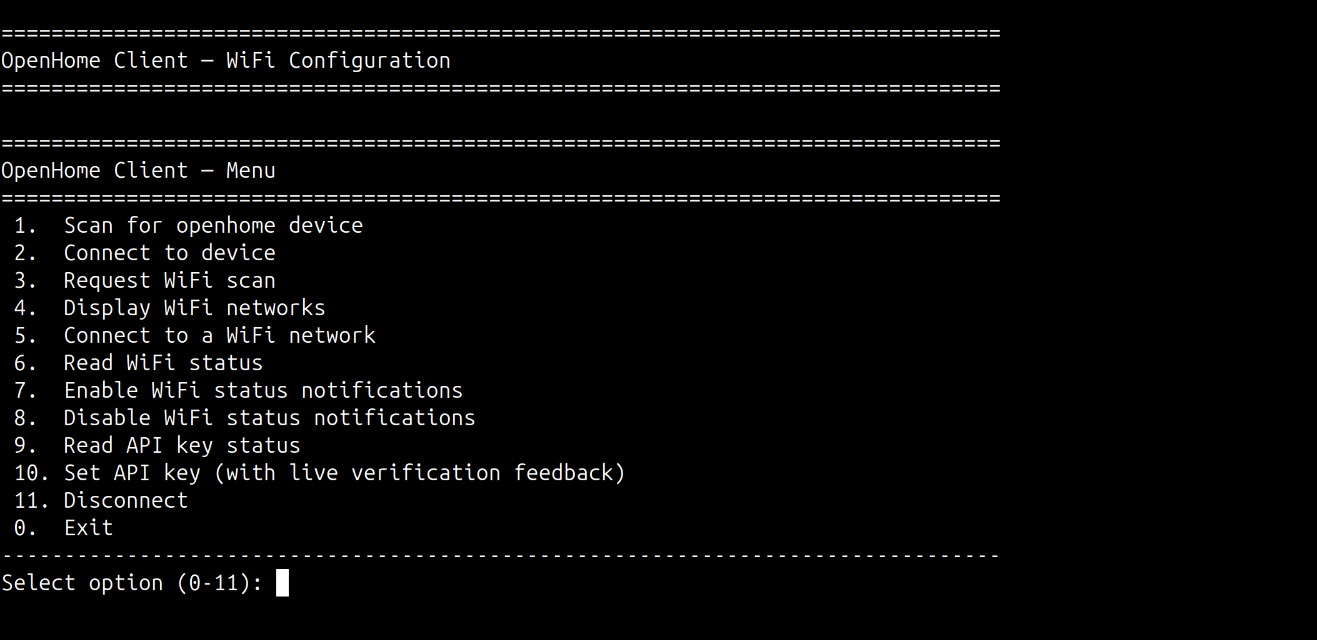
In your terminal, navigate to the folder where you savedopenhome_client.py and run:
Select option (0-11):, type the option number and press Enter. Run the steps below in order.
1. Scan for Your DevKit
Enter1 to run Scan for openhome device.
The OpenHome Client will scan for nearby devices and automatically pick the one with the openhome prefix.
2. Connect to Your DevKit
Enter2 to run Connect to device.
The OpenHome Client will establish a connection and confirm when connected.
3. Scan for Wi-Fi Networks
Enter3 to run Request WiFi scan.
This will scan Wi-Fi networks on the DevKit and display a list of available networks.
4. Display Wi-Fi Networks
Enter4 to run Display WiFi networks and view the list of available networks.
5. Connect to Your Wi-Fi
Enter5 to run Connect to a WiFi network.
- Enter the number of your home Wi-Fi network from the list.
- Enter your Wi-Fi password when prompted.
6. Verify Connection Status
Enter6 to run Read WiFi status and confirm your DevKit is connected to Wi-Fi.
Options
7 and 8 enable/disable real-time WiFi status notifications from the DevKit — useful for debugging connection issues by streaming state changes live. Option 9 reads the current API key status. You can skip these for basic setup and proceed to step 10.10. Set Your OpenHome API Key
Enter10 to run Set API key and enter your API key when prompted.
You can find your API key in the OpenHome dashboard under Profile → Settings → API Keys.
Once the key is set, your Agent will speak its welcome message. You can verify the API key status at any time by entering 9 to run Read API key status.
Setup Complete
Your OpenHome DevKit is now set up and available in your dashboard under DevKit.Need Help?
Ran into an error during setup? Reach out to us on Discord and the OpenHome team will help you out.Discord
See also
- Abilities — extend your Agent with custom Python-based skills
- Agents — learn how voice Agents work on the OpenHome DevKit
- Local Ability — build Abilities that run directly on the OpenHome DevKit hardware
- OpenHome - Voice AI DevKit App Overview — full overview of the OpenHome - Voice AI DevKit App